Samsung Galaxy phones come with two of almost everything, including two browsers.
Since you can't uninstall Samsung Browser, I hide it on every new Samsung Galaxy phone, so Chrome is the only browser I see.
Recently, I brought it out of hiding to see what I've been ignoring. And it does plenty of things well, like and handling dozens of tabs.
But the one feature that's keeping me from going back to Chrome is Samsung Browser's customizable toolbar. It lets me arrange the layout to fit the way I browse.
Let me show you how.
Chrome gives you one shortcut button
And that's about it
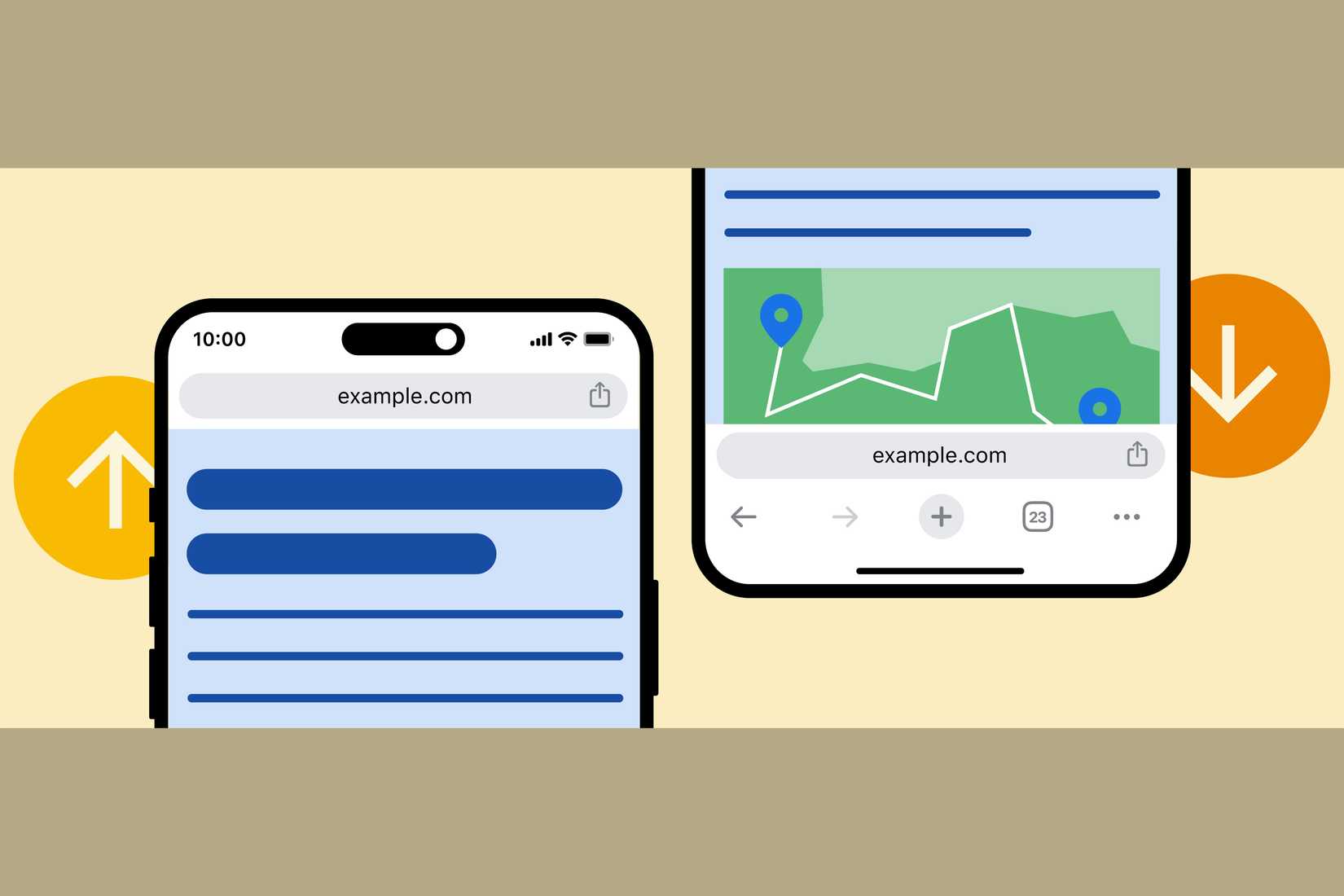
Aside from moving the address bar to the bottom, Chrome's only toolbar customization is adding a shortcut button between the tab counter and the address bar.
You can set it to open a new tab, share a page, start a voice search, translate a page, add a page to bookmarks, or listen to the page.
You can also let Google's AI switch between these shortcuts based on your usage.
It's a nice addition, but it's just one slot for one feature. That means almost everything else you'll need is hidden behind the three-dot menu.
So you need at least two touches to get to them.
Samsung Browser lets you redesign your entire toolbar
The features you use the most can be one tap away
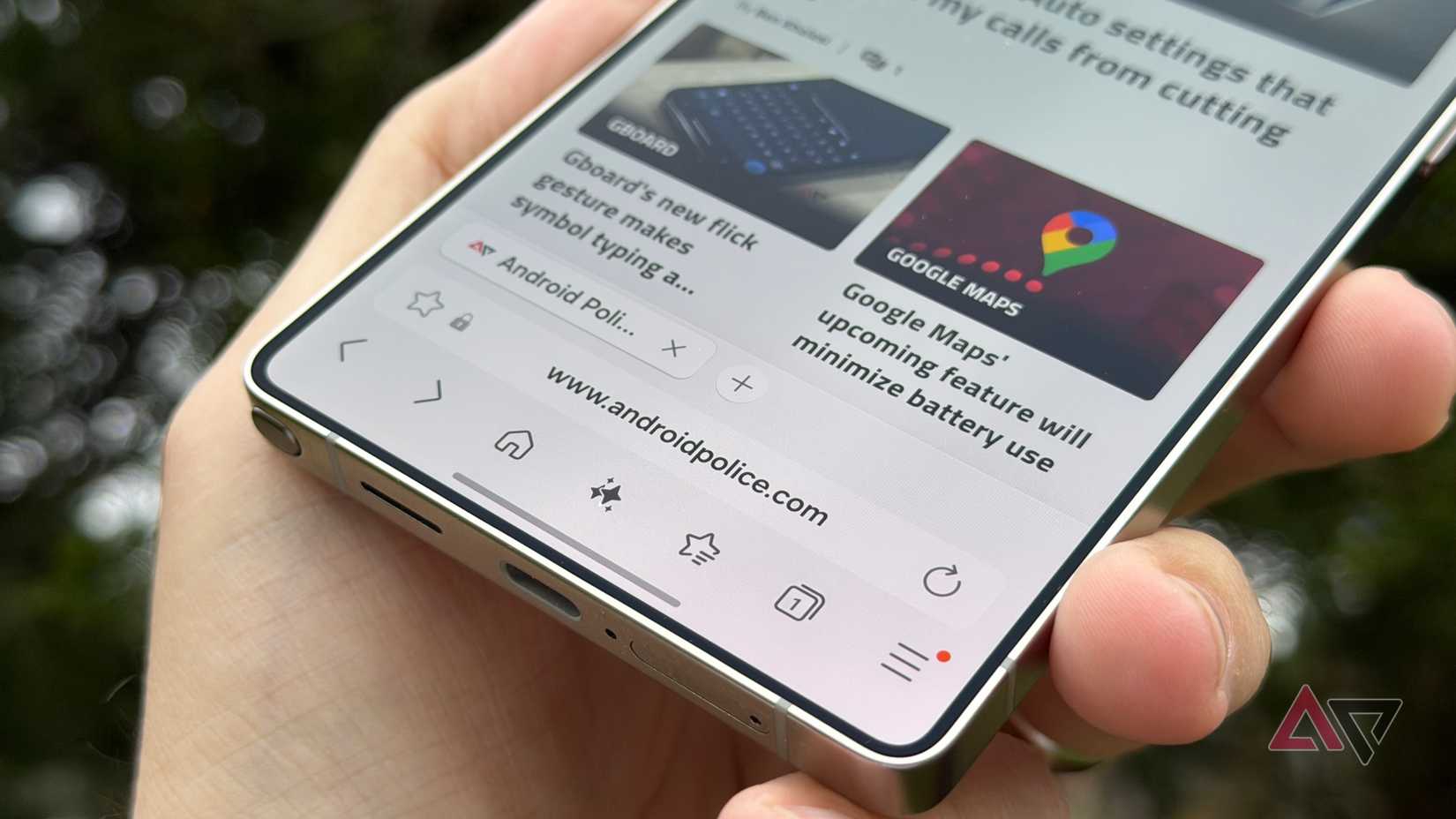
is on a different level when it comes to toolbar layout customization. It has a dedicated section for it.
You can add up to six buttons plus the menu icon to the toolbar from a list of over 30 items. And you can arrange them however you like.
At first glance, it doesn't seem like much. But after a few days of reaching the desktop site button in one tap, I realized how useful it is.
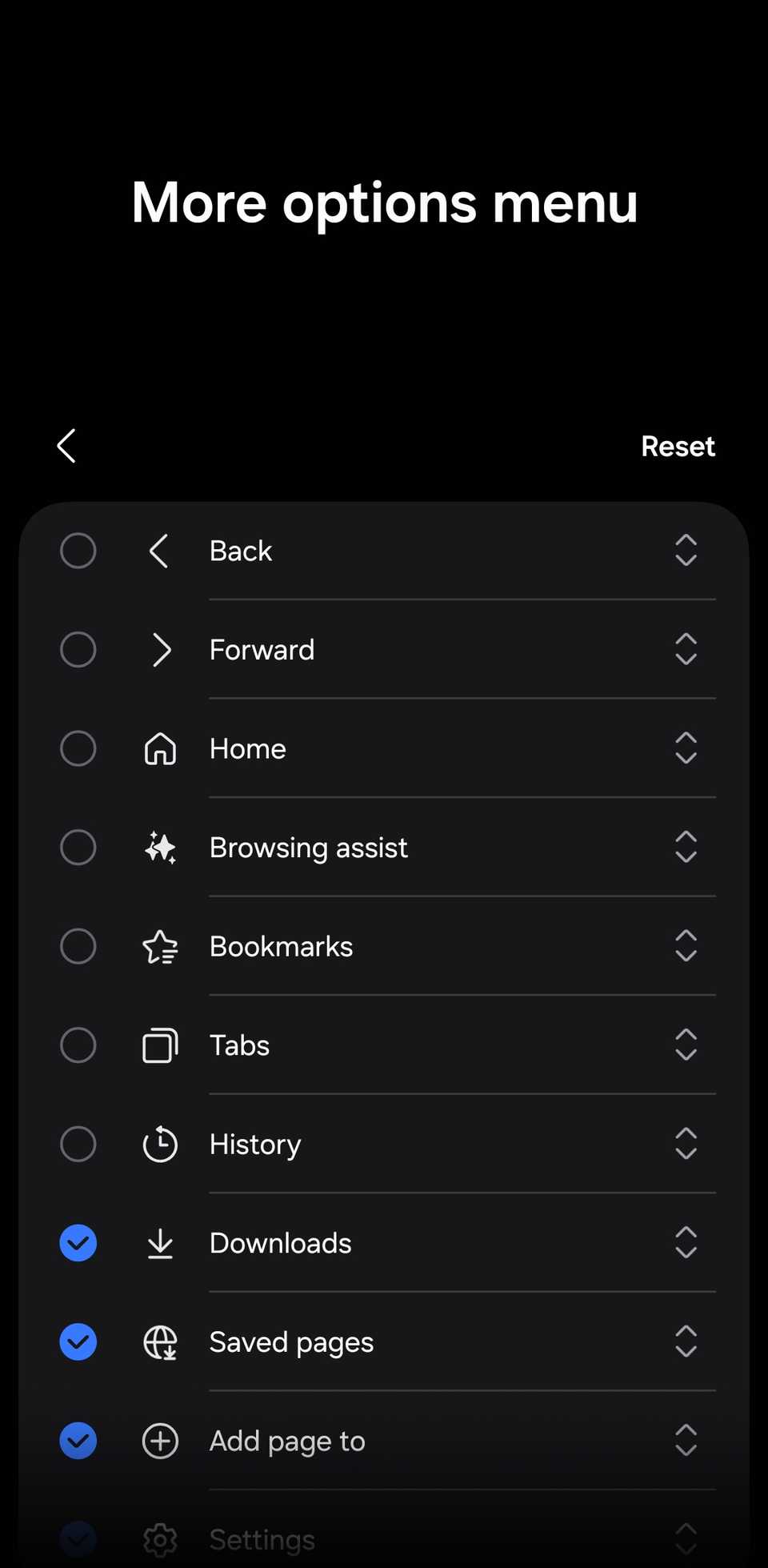
Plus, after adding your most-used buttons to the toolbar, you can customize the More options menu with tools you don't use as often.
You can also include a tab bar for your open tabs or a bookmark bar for your saved bookmarks above your toolbar.
You can set all three bars to stay visible at all times or disappear and reappear as you scroll up or down.
My current toolbar setup
Yours will look different, and that's the point
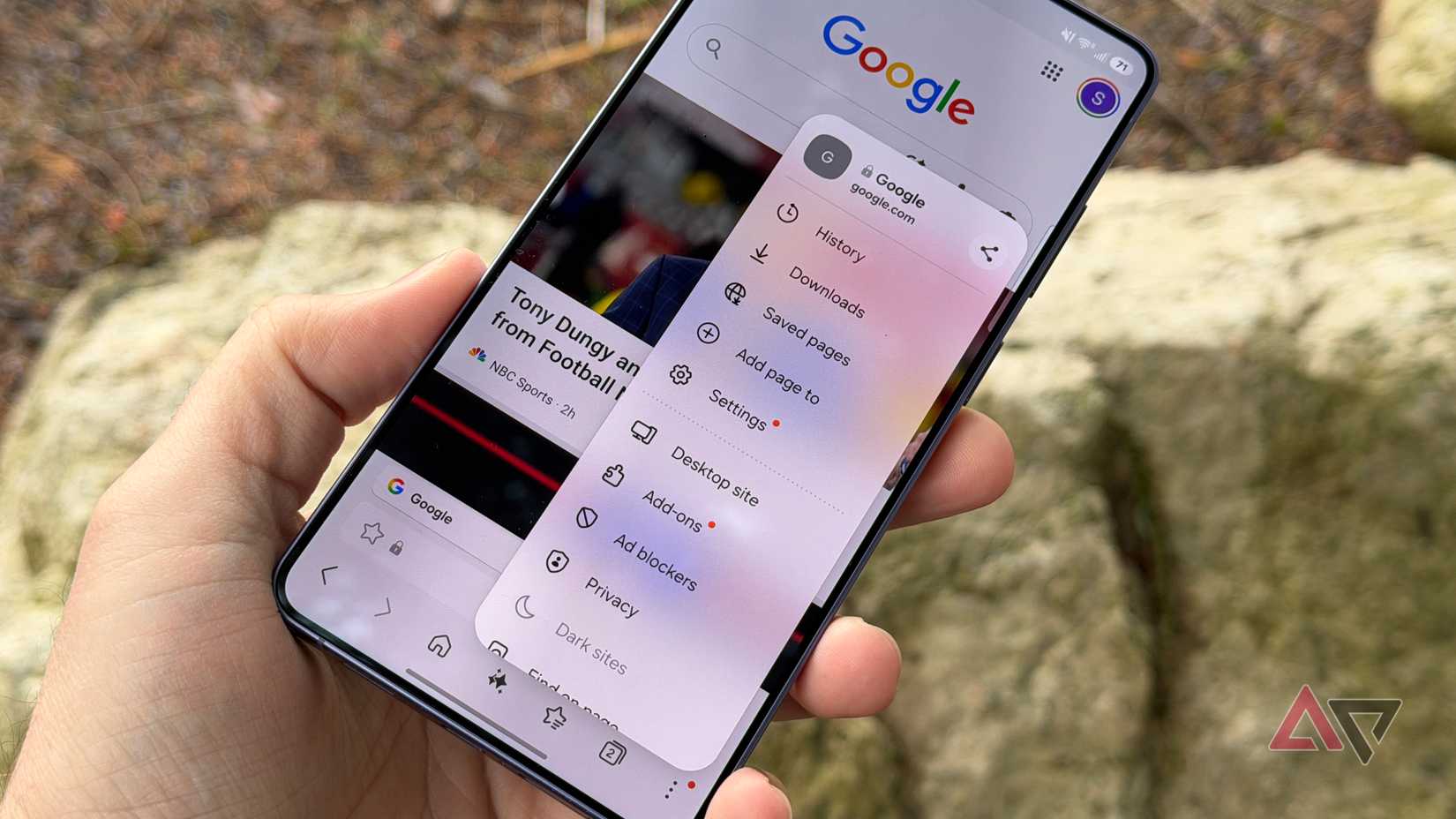
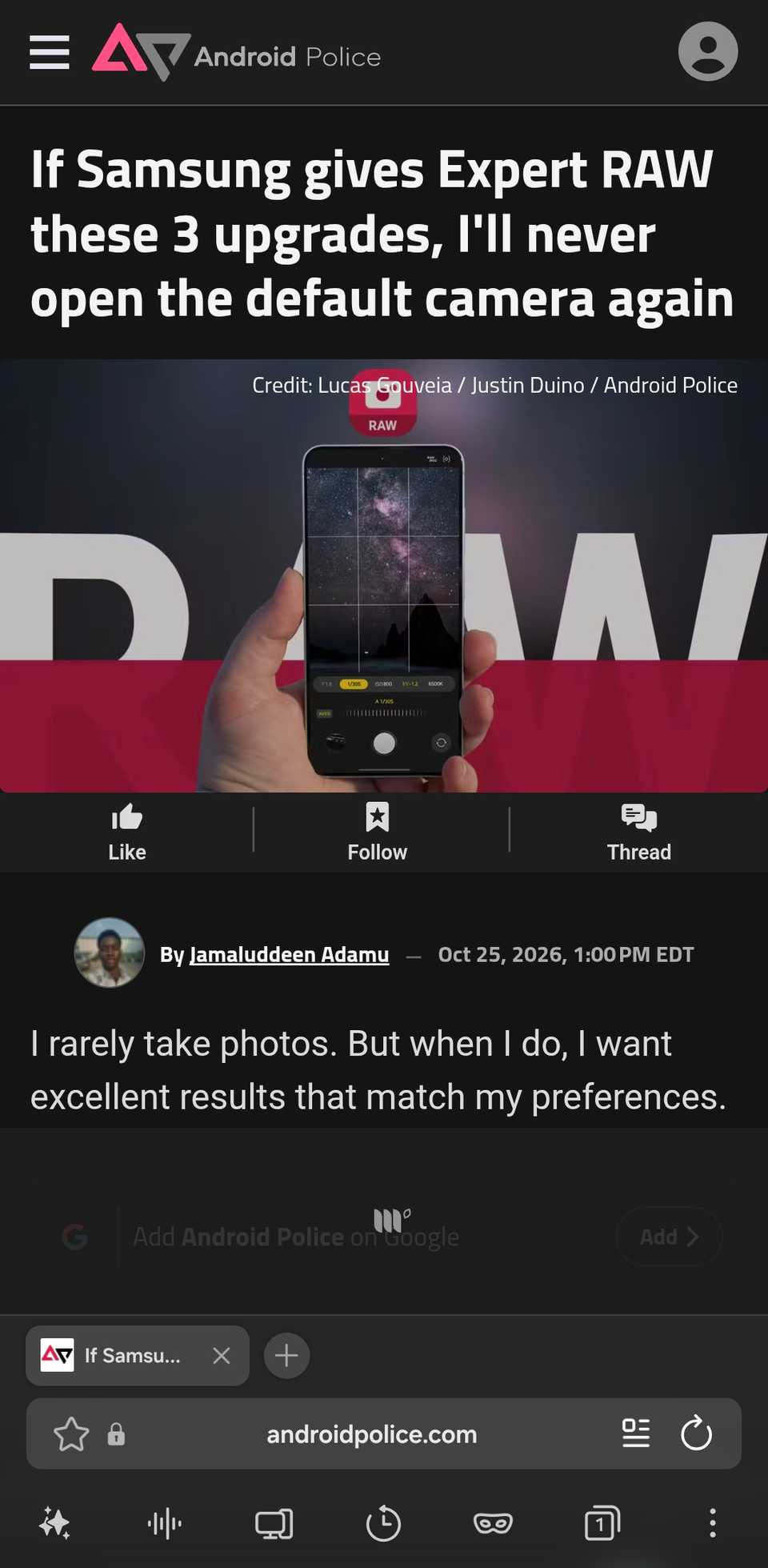
For my Samsung Browser toolbar, I included the tools I use the most:
- Opens Browsing assist, which can summarize a page, translate it, or read the highlights aloud.
- Read aloud: Reads the article to me. I mostly use it for long educational texts because hearing and reading at the same time makes it easier for me to understand.
- Desktop site: Shows pages as they would display on a PC. I use this all the time for pages that hide features or load badly on mobile.
- I'm still on the fence about this one. Both are useful: history lets me get back to a page I closed by accident, and downloads lets me see files I just downloaded.
- Secret mode: Opens a private tab instantly.
- I keep this one because I switch between open pages constantly.
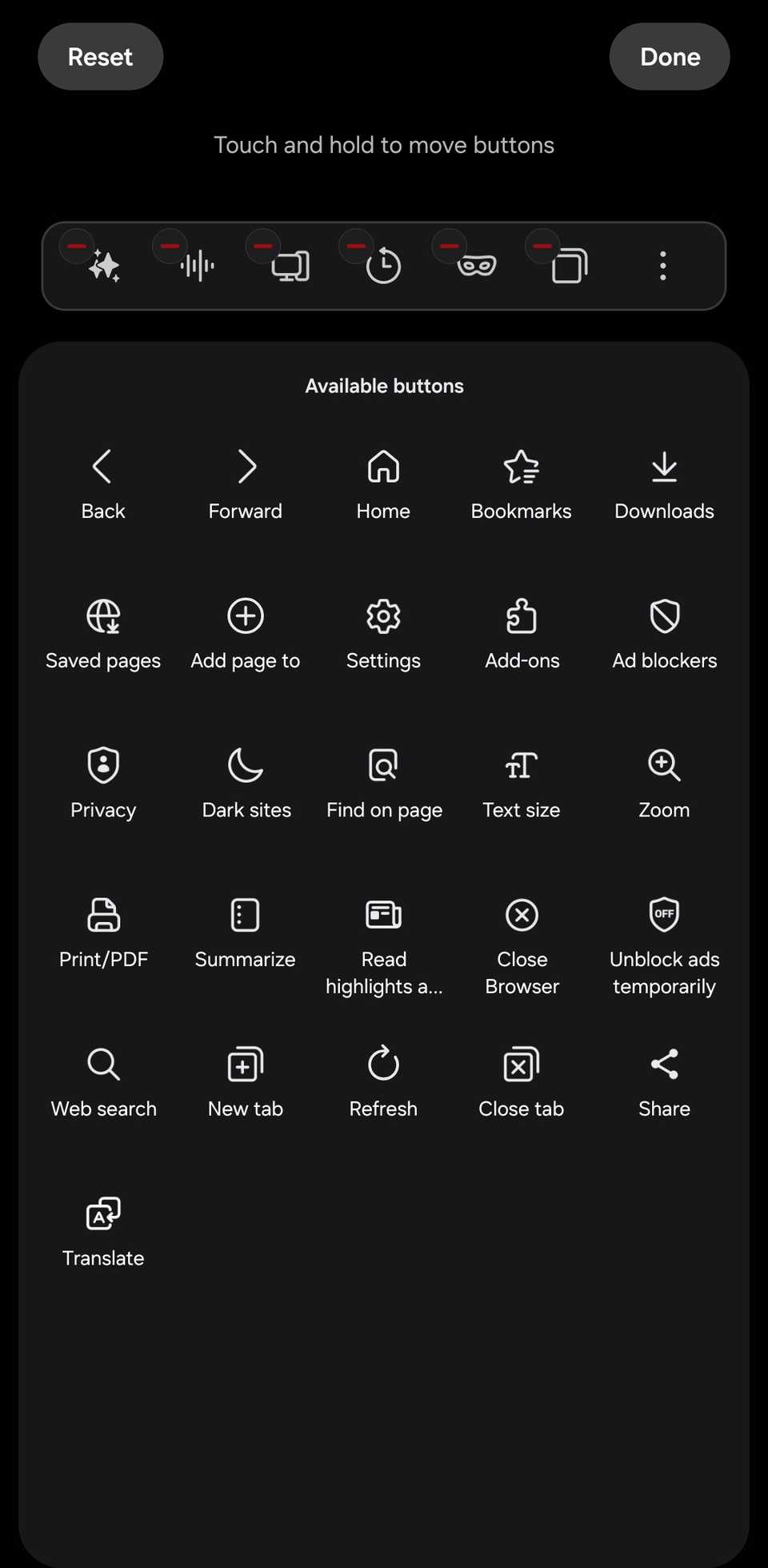
Your list will likely contain different items. Samsung Browser has buttons for Ad blockers, Translate, Dark sites, Find on page, Zoom, Print/PDF, and so on.
There's also a button to temporarily unblock ads when a site refuses to load with an ad blocker on.
How to customize Samsung Browser's toolbar
You'll be done in a jiffy
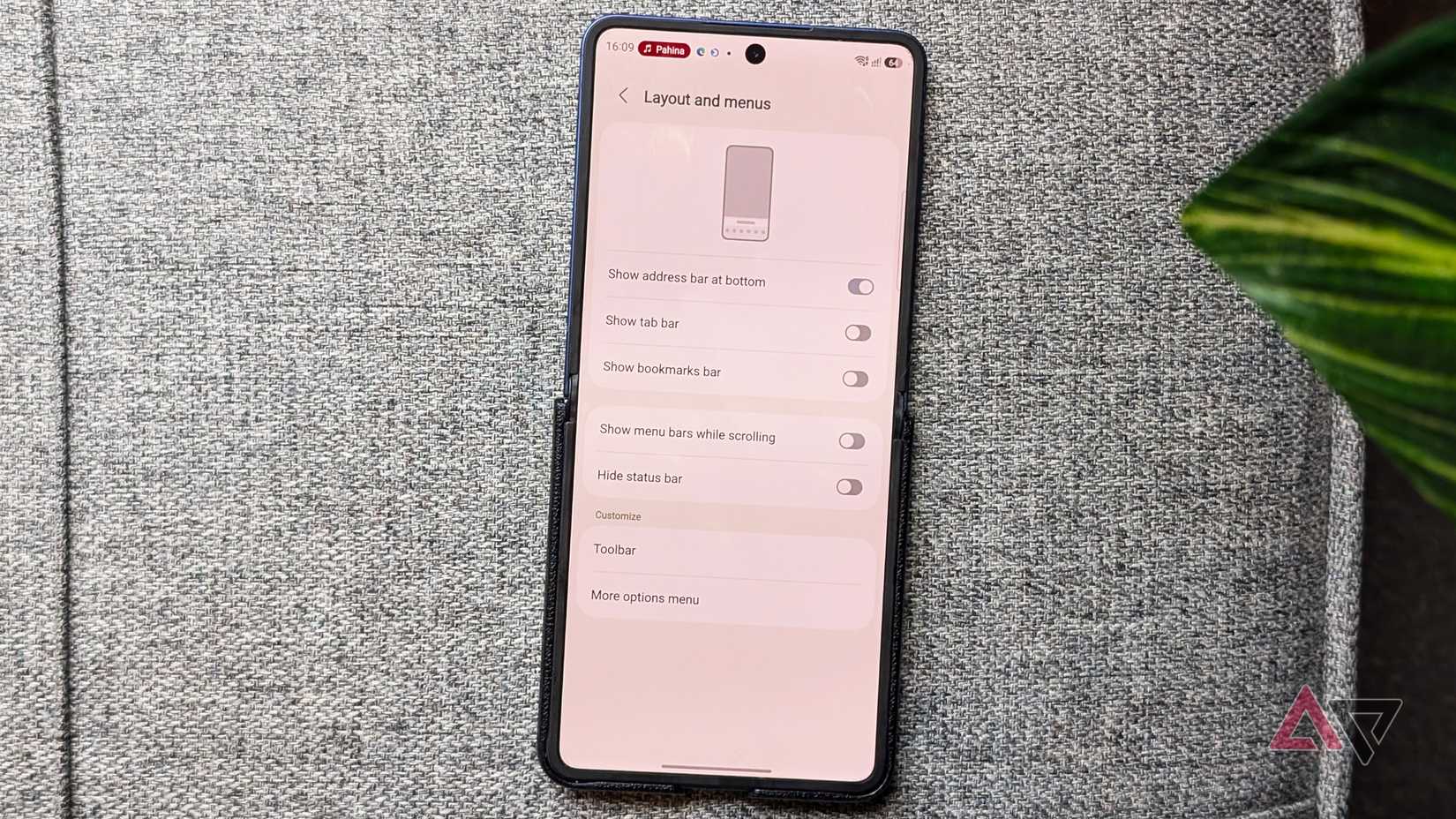
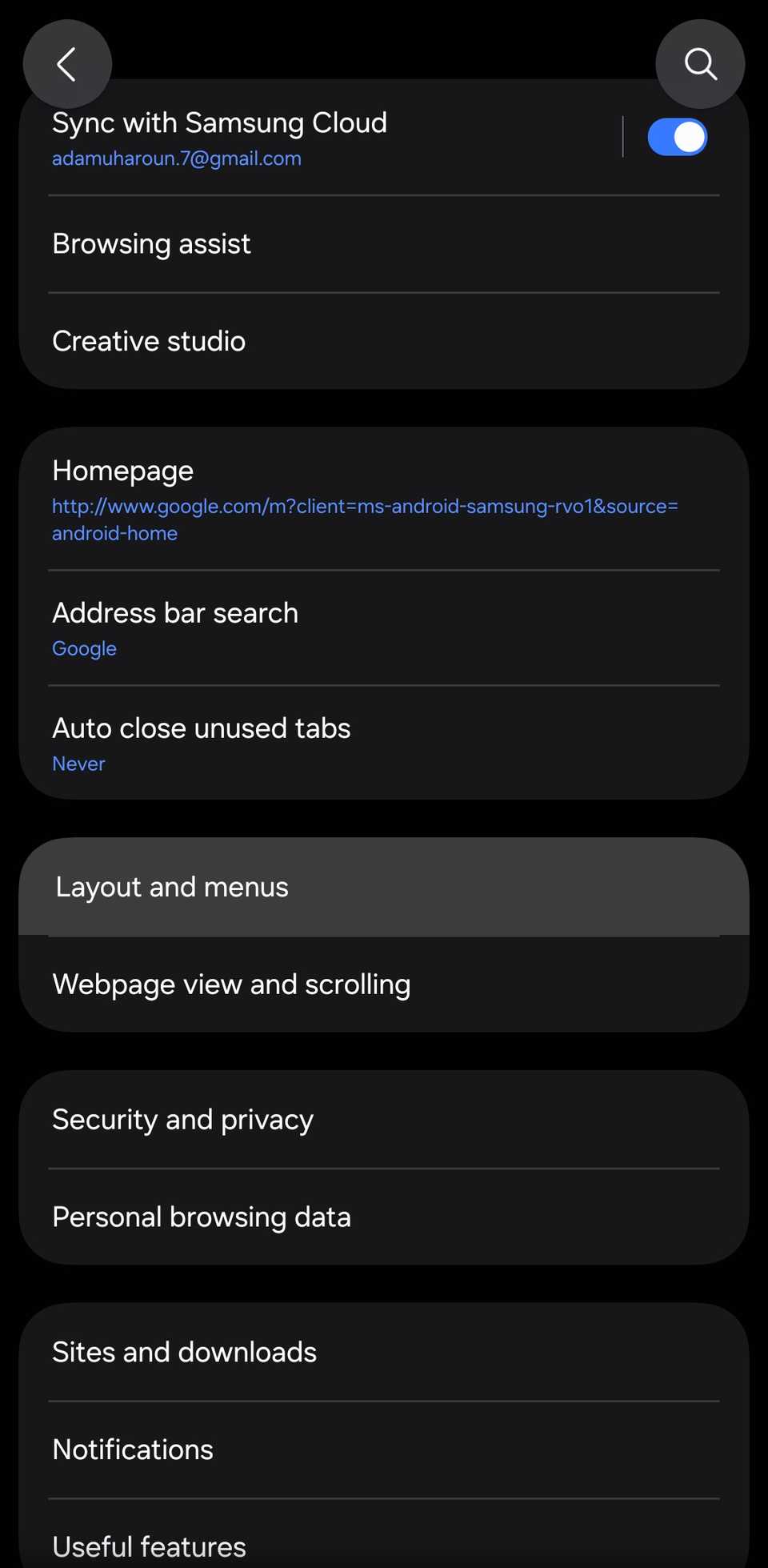
To customize your Samsung Browser's toolbar:
- Open the app and tap the icon in the lower-right corner.
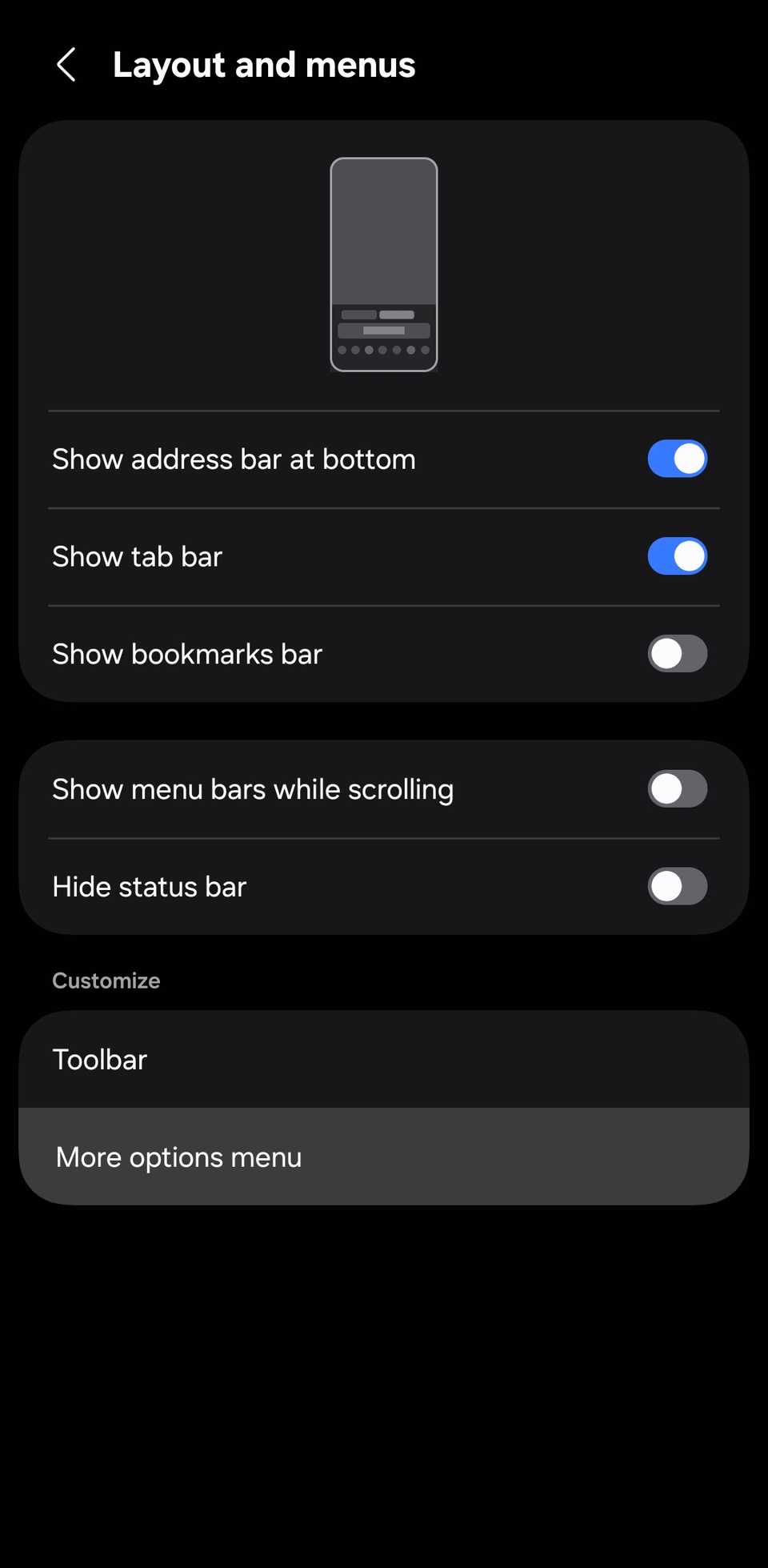
- Tap and go to Layout and menus.
- section.
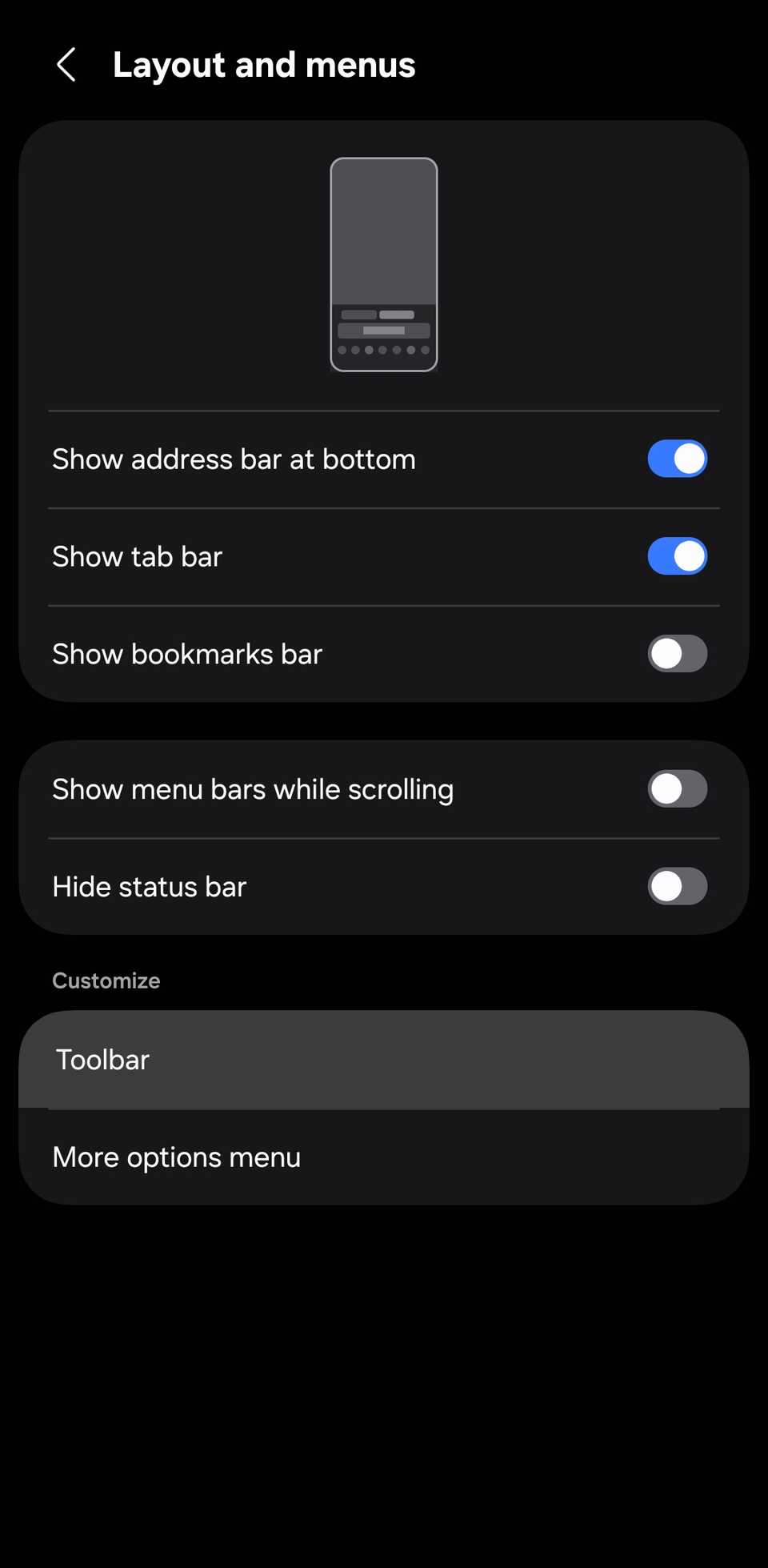
- Touch and hold a button and drag it to the toolbar to add it. Tap the red minus sign on a button to remove it from the toolbar.
- in the upper-right corner to save your settings.
-
Select the More options menu to choose which tools appear in the menu. You can also adjust their positions.
A simple feature that changes the browser's feel
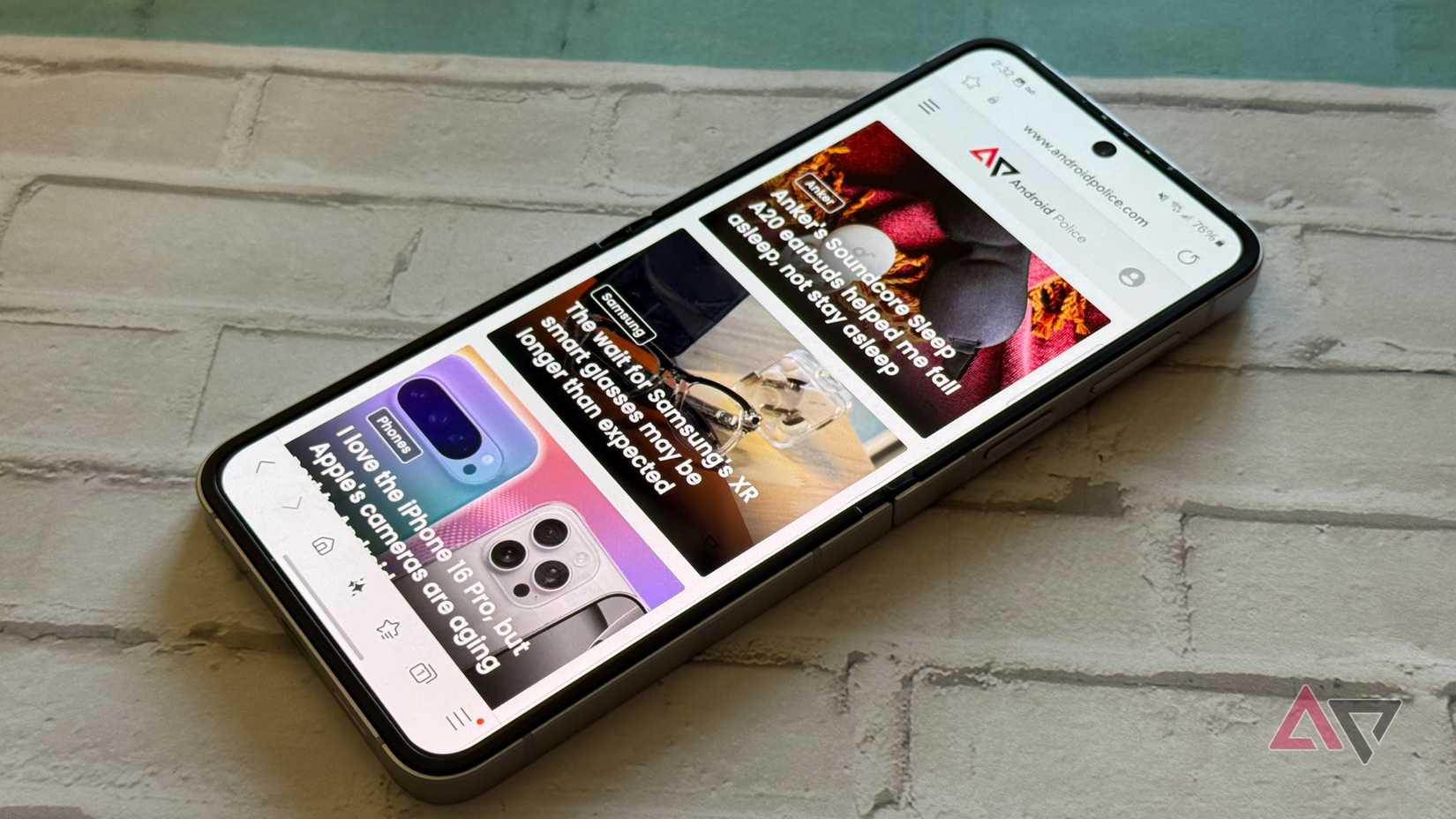
Toolbar customization is hardly the flashiest thing on Samsung Browser or any browser, for that matter. But it's the one that's impressed me most.
For the first time on any Galaxy phone I've owned, I'll stop hiding Samsung Browser.
If you're considering changing browsers but not sure which to use, here's how Chrome, Edge, Samsung Browser, and Firefox compare after 60 days of testing.