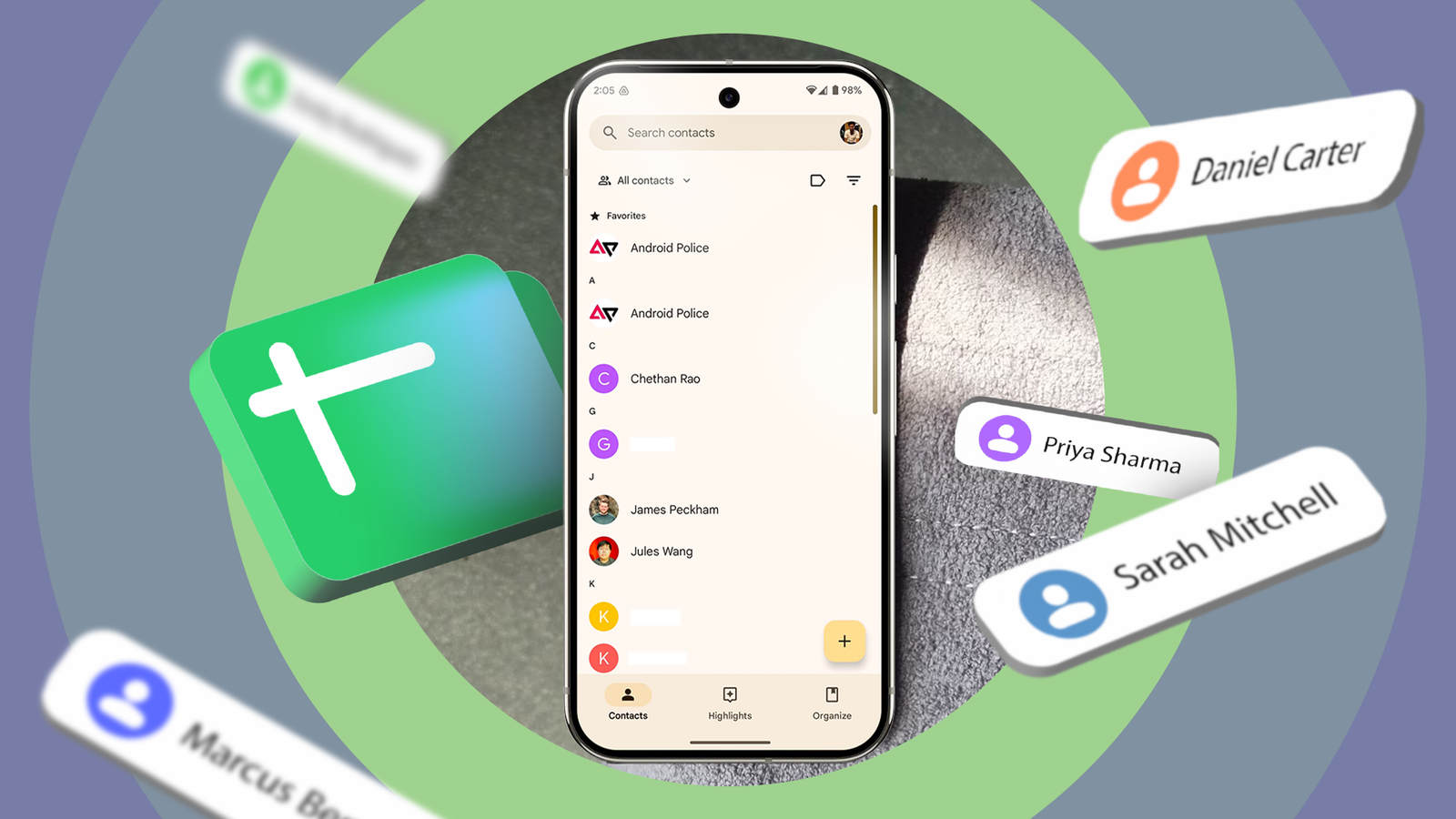
For over a decade, I've kept my contacts untouched. The list has grown from a few dozen to over a thousand.
Worse, my entire address book looks like organized chaos, except it's not organized. It's a cluttered mess.
With this many entries, I always avoided going through each one, debating which outdated contacts to remove or how to tidy up the entire catalog.
Fortunately, has started integrating Gemini, and the best part is that it offers an easier way to fix this clutter.
It's the missing "Marie Kondo" touch I've been looking for, not only purging duplicates, but bringing order to the chaos.
What you need before cleaning your contacts
You won't need a computer science degree
In my case, I was lazy about managing my contacts for years, which is why things ballooned to this scale.
I'm talking about the Gemini feature in Google Sheets. It is available in Google Workspace apps, including Sheets, if you have a paid Gemini plan.
With a few lines, I can clean up my entire contacts catalog, unlike the arduous work of manually sorting through every contact.
There's a Merge and fix feature, but it only checks for exact duplicates. It won't flag or filter inactive entries.
Gemini fills these gaps, and it's useful if you've accumulated hundreds or even thousands of contacts over time, like me.
How to download your entire contacts list
Grab the export file through your phone or the web
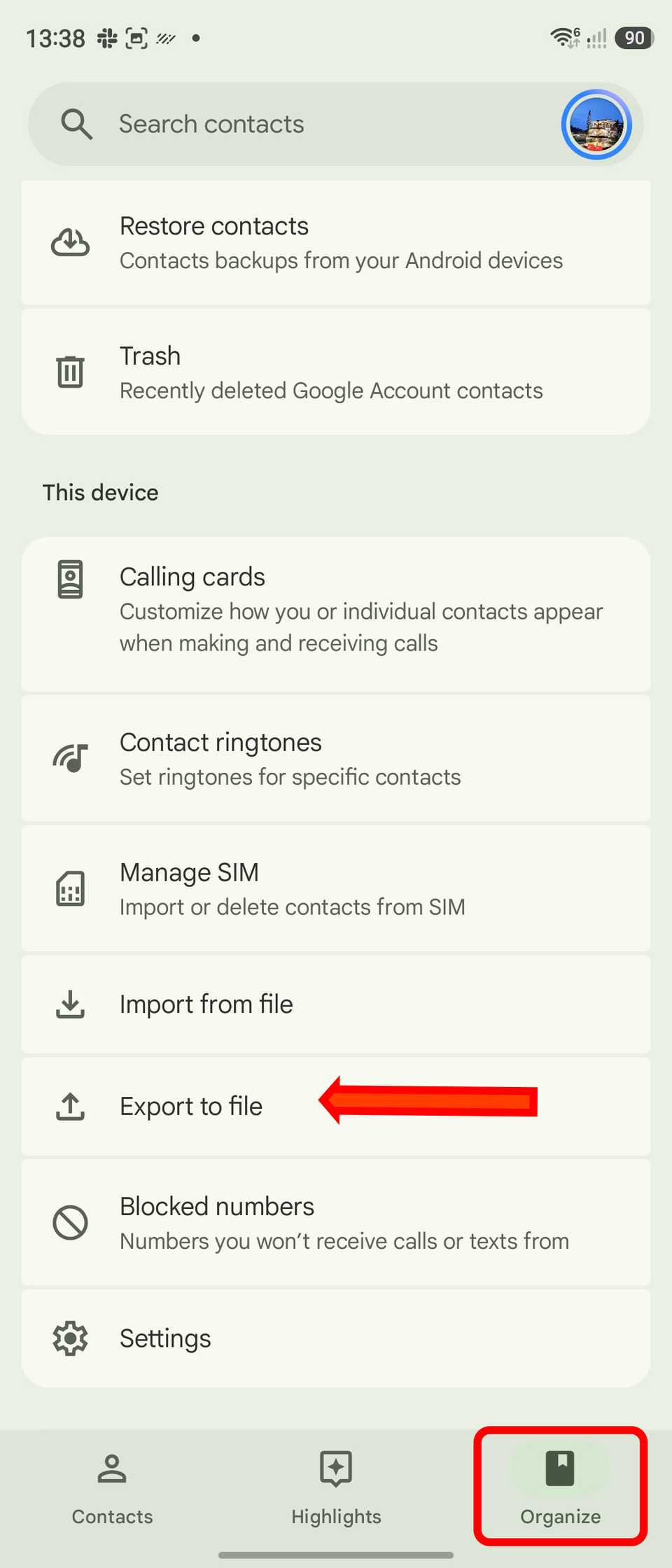
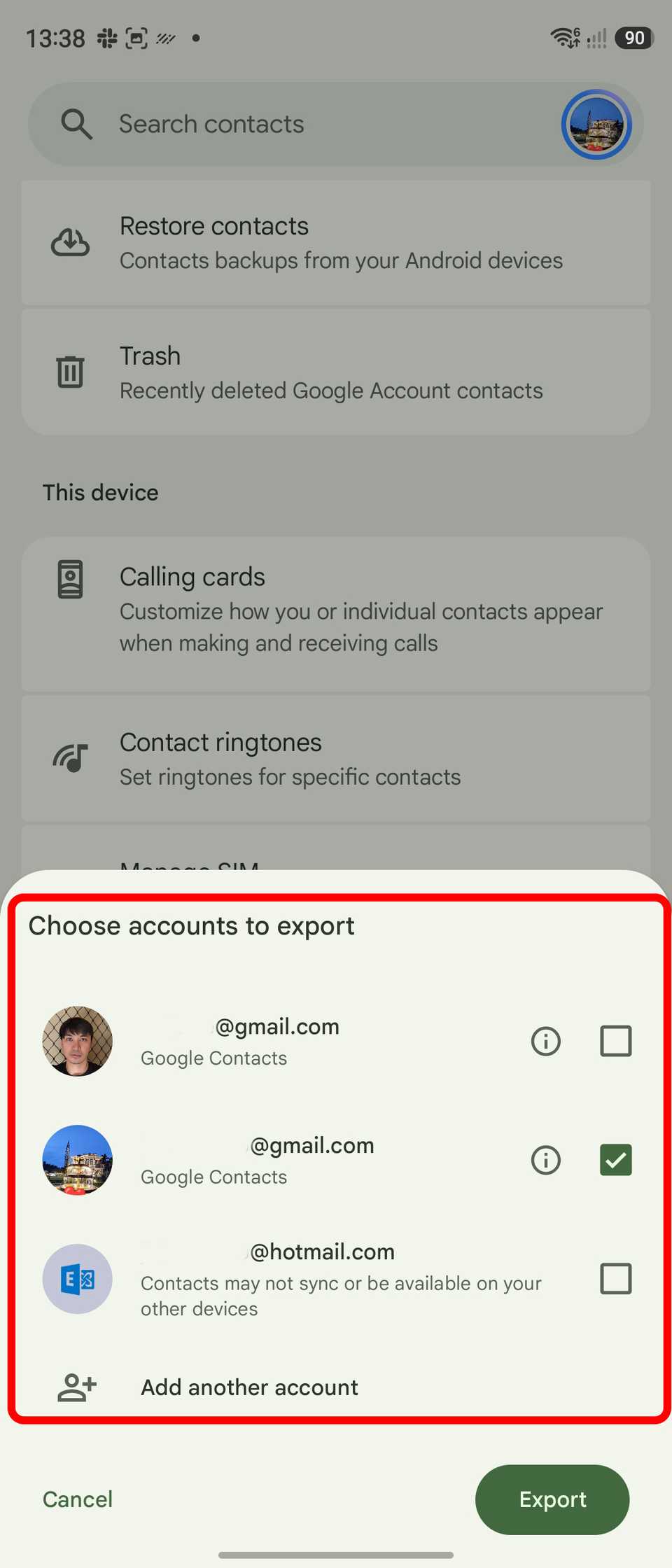
First, I exported my address book. There are a couple of ways, but the quickest is with your Android phone.
- Launch the Contacts app on your phone.
- Tap the Organize tab.
- Scroll down and choose .
- Choose the Google account.
- Select the target location or folder to download the file.
You can also upload the or to Google Drive so you can access it quickly in Sheets later.
Alternatively, if you're on a laptop or desktop, you can use the web, which I also find convenient.
Navigate to contacts.google.com and be sure you're on the target account.
Choose in the side menu, tap , and pick the file format. Use , as it will open automatically in Sheets.
Importing your contacts to Google Sheets
Stick to the desktop browser for the heavy lifting
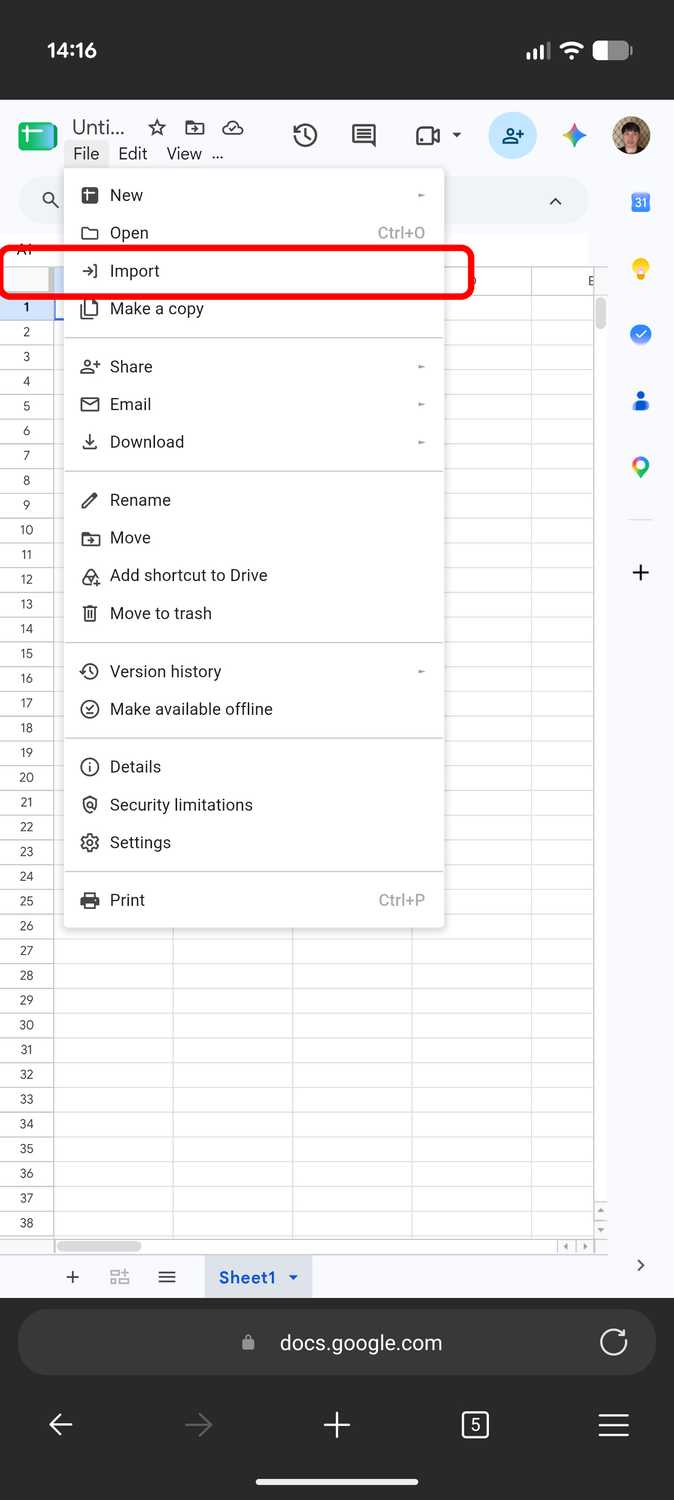
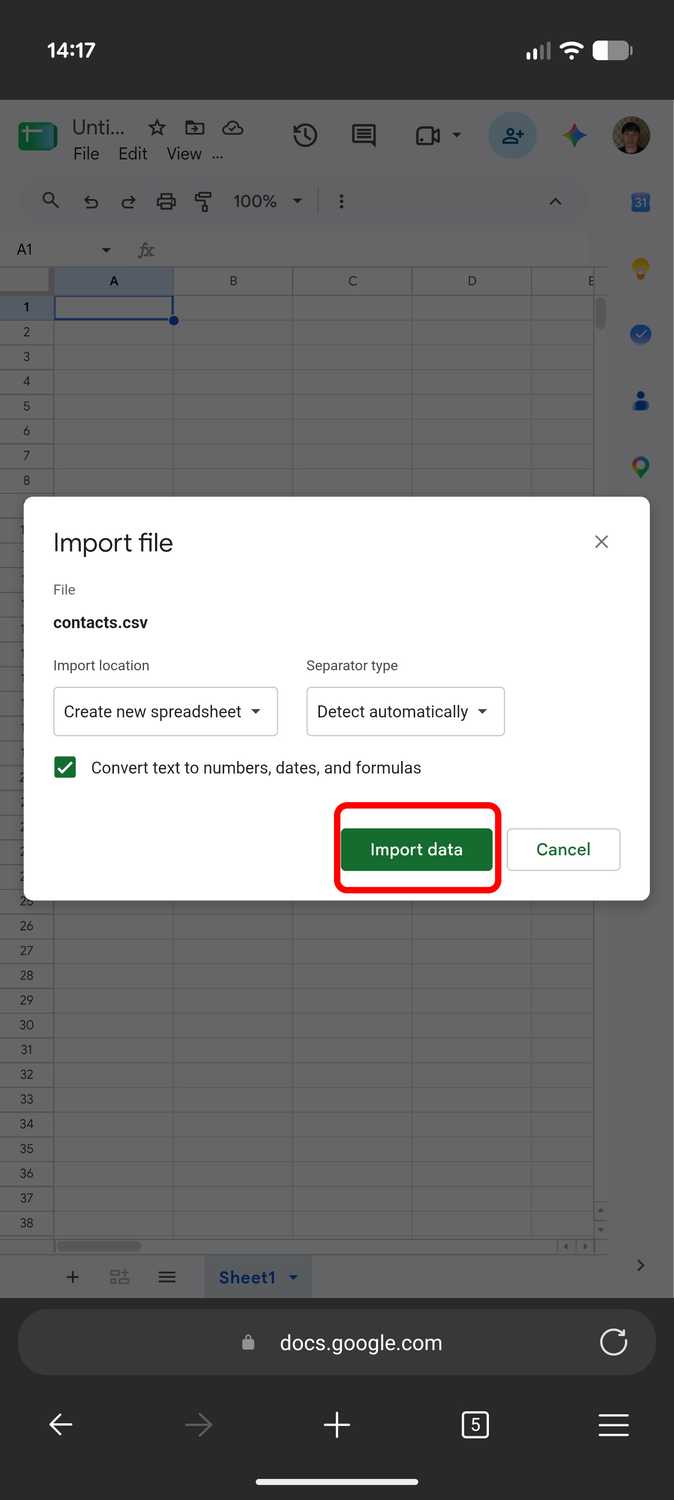
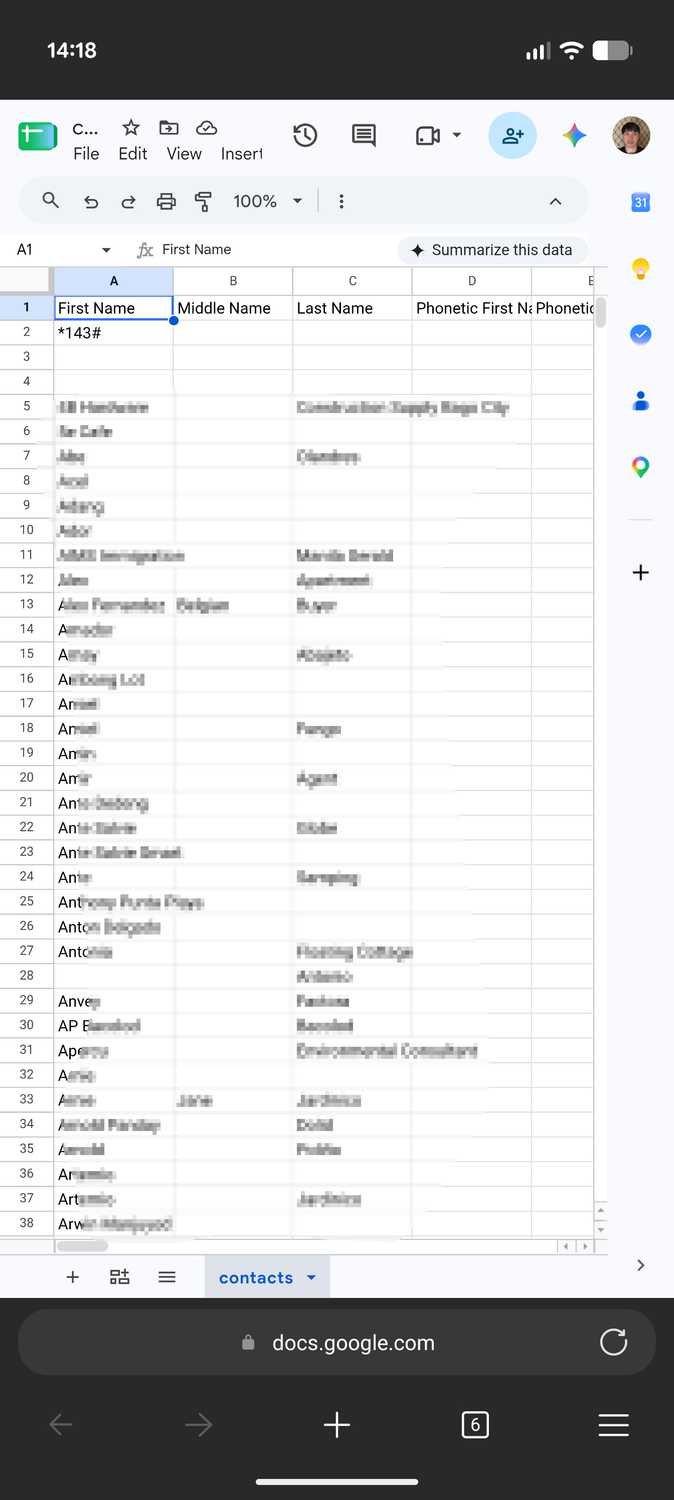
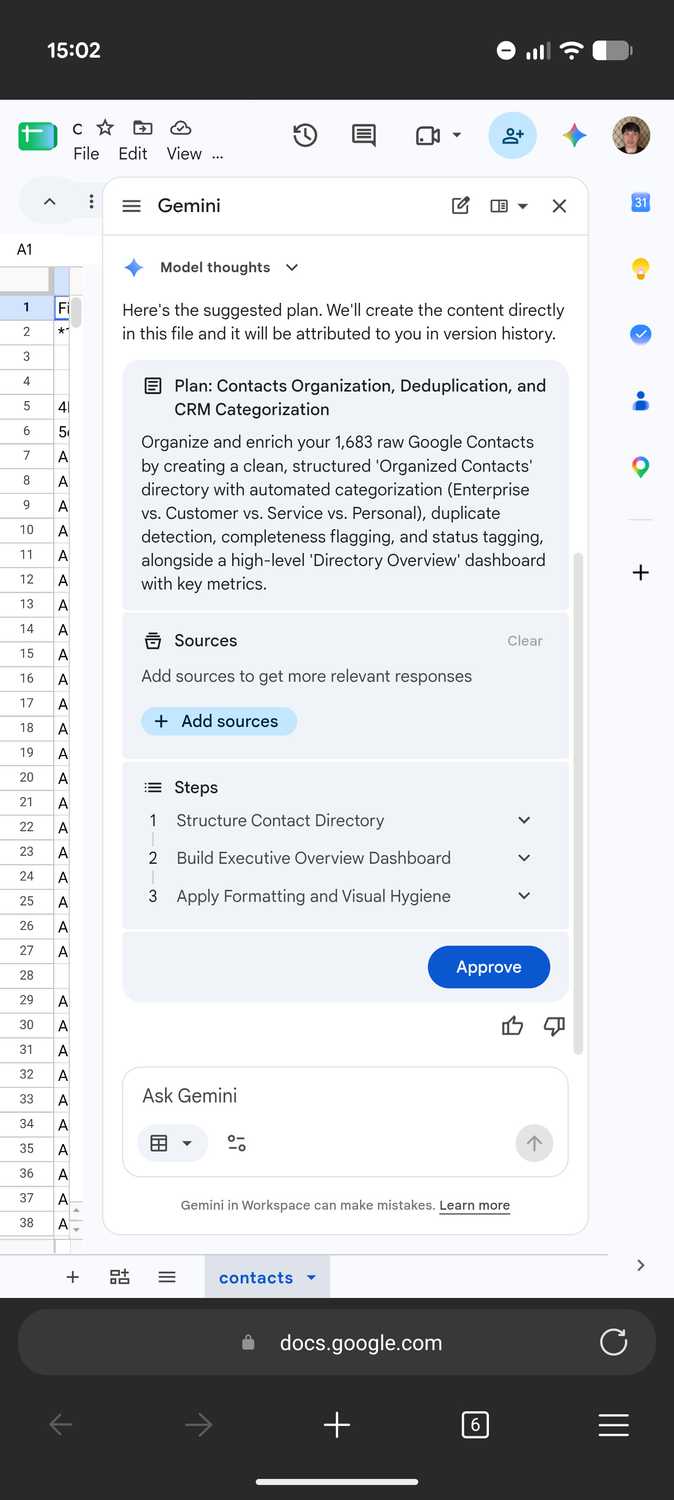
After you've downloaded your compiled contacts in VCF or CSV format, go to Google Sheets to import your data.
I recommend using the or a desktop browser to open Sheets, since the mobile Sheets app doesn't support these file formats and its Gemini capabilities are restricted.
- Create a new spreadsheet.
- Choose inside Sheets.
- Tap .
- Choose if you uploaded the file there.
- Confirm the import.
When done, wait for Sheets to populate your contact list.
The default view will be a spreadsheet with multiple columns, and you don't need to study or memorize every entry.
What Gemini prompt to use
Go easy or go full Marie Kondo
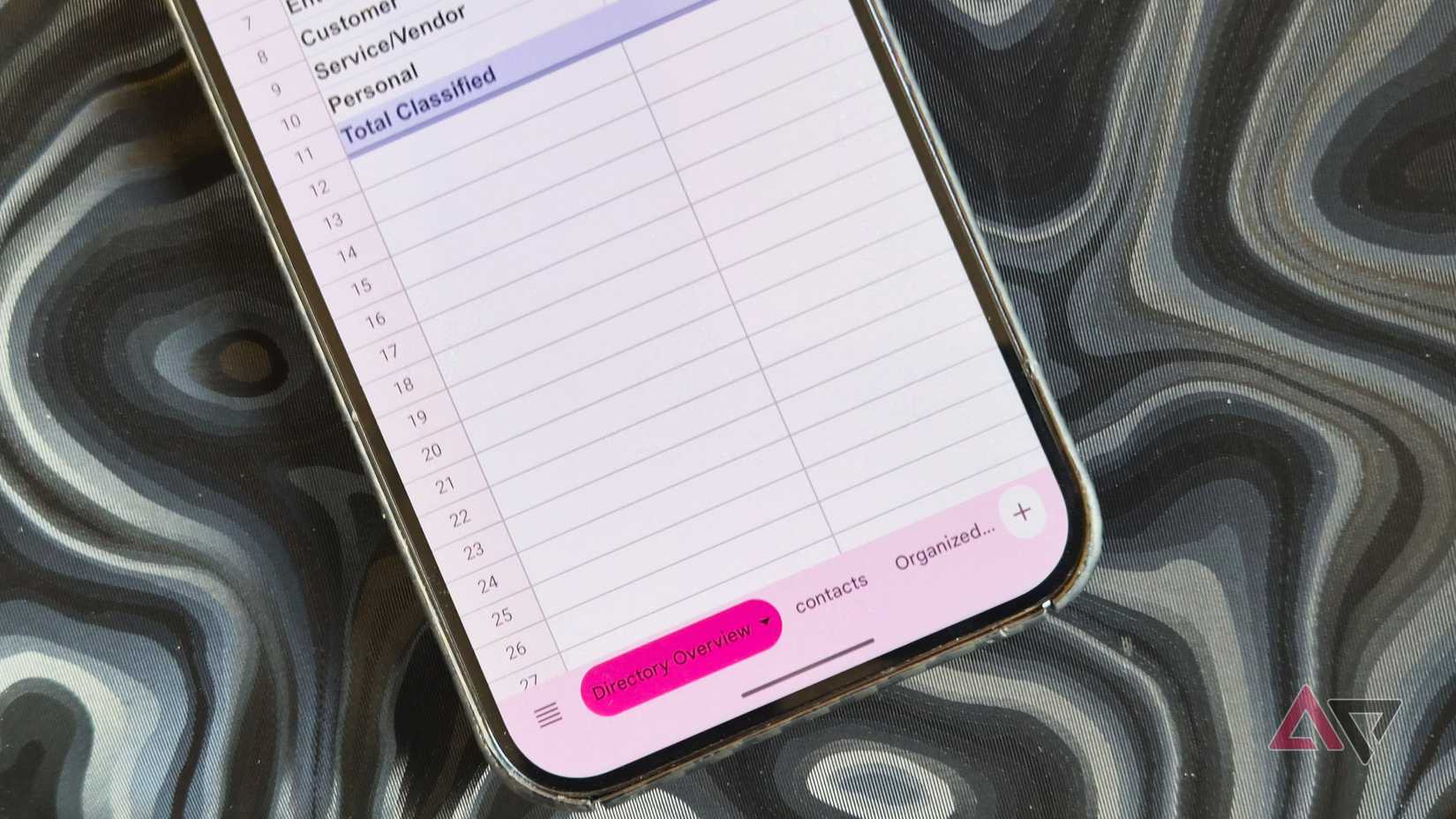
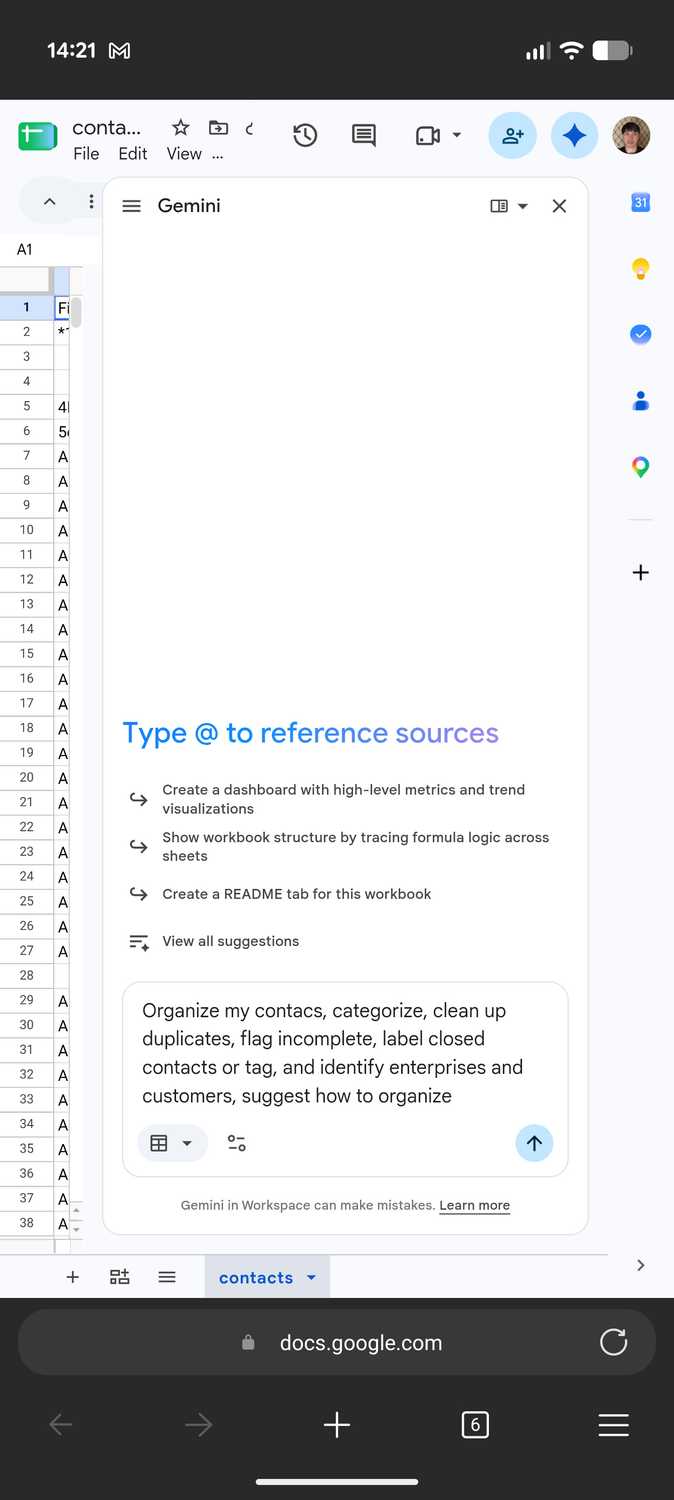
After you import the file, open Gemini in Sheets and enter your prompt.
I recommend telling Gemini to follow the default Google Contacts layout, which is the part for entries to merge successfully or be added back later.
I made the mistake of not following the Contacts layout on my first attempt, so I had to correct it on the next try.
For the prompt, you can go with:
Organize my contacts by flagging duplicates, inactive or junk contacts, fixing proper cases for names and businesses, and correcting incomplete entries. I want you to follow the Google Contacts column layout so they import without hiccups.
Alternatively, you can prompt Gemini to act like a professional organizer or Marie Kondo for contacts by tidying up entries, removing duplicates, and resolving formatting inconsistencies.
You can stick with a straightforward command here, since you can follow up after a response or get creative from the start.
In my case, I refined and tweaked the prompt a few times before Gemini gave me the exact results I wanted.
Finalize your new address book
Erase your Google Contacts library before importing
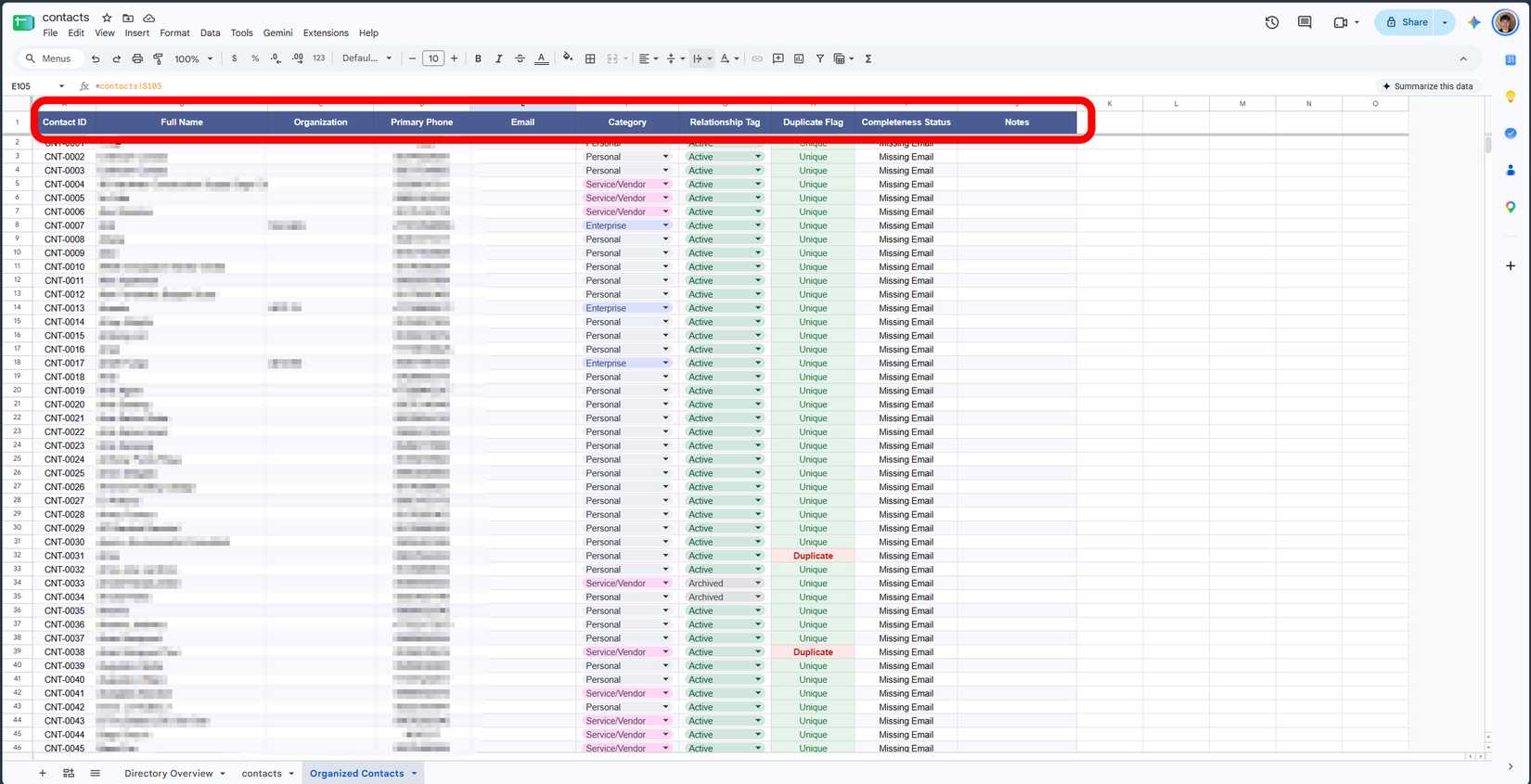
After Gemini finalizes your spreadsheet, confirm it follows the current column order in your Contacts app.
For example, I used , , Phone number, Job title and company, and . I gave Gemini this layout to follow.
You can arrange the column order in Google Contacts, but you must keep these exact header tags.
Finally, download the CSV file from Google Sheets, and make sure you're on the correct sheet tab before downloading.
Before importing, delete all your old entries to avoid duplicate clutter, since your previous contacts aren't automatically replaced when you import the new address book.
After you clean out your address book, import the fresh CSV file into Google Contacts.
Depending on how it runs, I was prompted to merge and fix a few items and add some missing details. These tools are available in the app.
My new contact list synced across my devices within a minute or so.
Gemini in Google Sheets is a lifesaver for decluttering my contacts
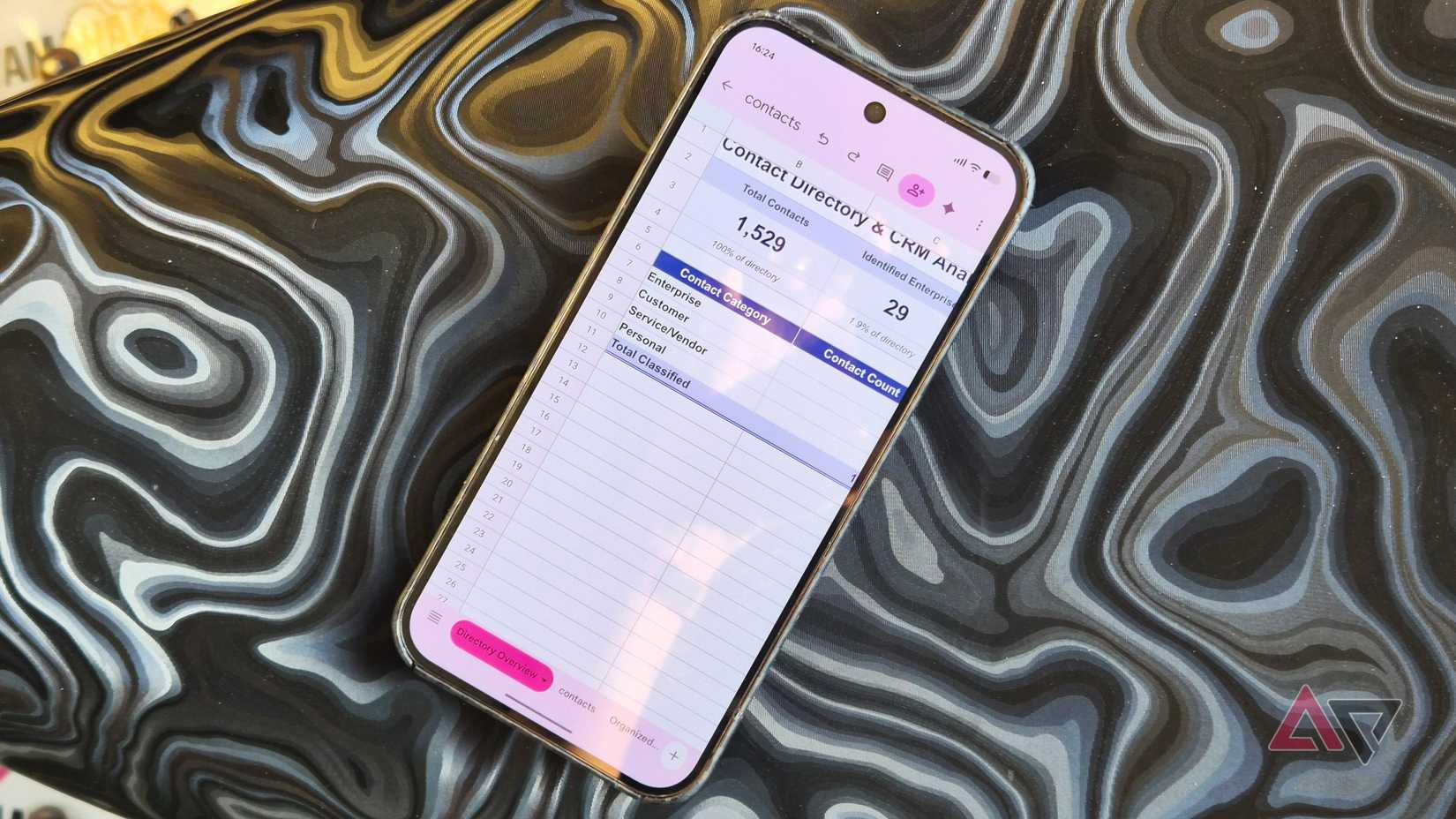
If you have the same clutter as I do, in Google Sheets to organize your messy address book.
Although I wish the Sheets app on Android supported this natively, the desktop app gives you plenty of screen real estate.
If you don't have the same level of chaos as mine, stick to the built-in organizer tools in the Contacts app for a quick purge of duplicates and junk.
But for hoarders, letting Sheets do the dirty work beats spending your weekend or days scrolling through a thousand forgotten people and numbers.