
For a while, Android stopped surprising me. Every new phone I bought looked and behaved like the last one, so I stopped digging through the settings menu for interesting features.
I recently acquired a Samsung Galaxy S24 Ultra, and it brought that curiosity back. Android lets phone makers customize large portions of the system, and Samsung uses that freedom more than any brand I have owned.
Most of what I enjoy about this phone comes from tools Samsung added on top of Android, so here are the five that made me excited about the platform again.
Deep customization without root access

The first app I install on any Galaxy phone is Good Lock. It is a free Samsung app that hosts separate modules, and each module customizes one part of One UI. I get it from the Galaxy Store, and Samsung also lists it on the Play Store.
I used to run custom Android themes for years, and Good Lock gives me similar control without replacing the entire system UI or requiring root access.
For example, RegiStar lets me reorder the Settings app and set a double tap the back of the phone to take a screenshot.
One Hand Operation+ adds handles to the screen edges, and each handle recognizes straight, diagonal up, and diagonal down swipes. I use them to open notifications without stretching my thumb across the 6.8-inch display.
NotiStar keeps a searchable log of every notification, including the ones I accidentally swipe away. It is one of several Good Lock modules that feel too essential to stay optional on a Galaxy phone.
Modes and Routines
If/then automation built into One UI


Modes and Routines is Samsung's built-in automation app. Each routine pairs a condition with a set of actions, and the phone runs those actions whenever the condition is met.
Conditions include connecting to a specific Wi-Fi network or Bluetooth device, the battery dropping below a set level, or a set time of day. The routine I use most sets the media volume to a specific setting when my earbuds connect.
Tasker or MacroDroid can do more, but I usually don't have the patience to set them up. With Modes and Routines, my first routine was running in under a minute.
Samsung adds Routines actions with each One UI release, and the Routines+ module in Good Lock adds touch macros on top.
The last Galaxy Ultra with a Bluetooth S Pen

The S Pen slides into the S24 Ultra, so I always have a stylus with me. Unlike a basic capacitive stylus, the S Pen is detected by the phone while it hovers above the display.
Hover detection is what makes the pen useful beyond drawing. With Air view, pointing the pen at a photo in the Gallery shows a preview, and Magnify enlarges small print without pinching the screen.
One feature that continues to blow my mind is how S Pen to text turns my handwriting into typed text in any search field or address bar.
And with Screen off memo, I can write a note that saves to Samsung Notes even while the display is off.
Pulling the pen out also opens Air command, a floating menu of pen tools. One command I like is Translate, which can show the translation of a hovered word in another language.
My S24 Ultra's pen has one extra that Samsung dropped starting with the Galaxy S25 Ultra. It connects over Bluetooth for Air actions, so I can press the pen button to take group photos without touching the screen.
The S26 Ultra's pen doesn't have Bluetooth, so it doesn't need pairing or charging, but it keeps all the other features.
Galaxy AI that cleans up recorded sound
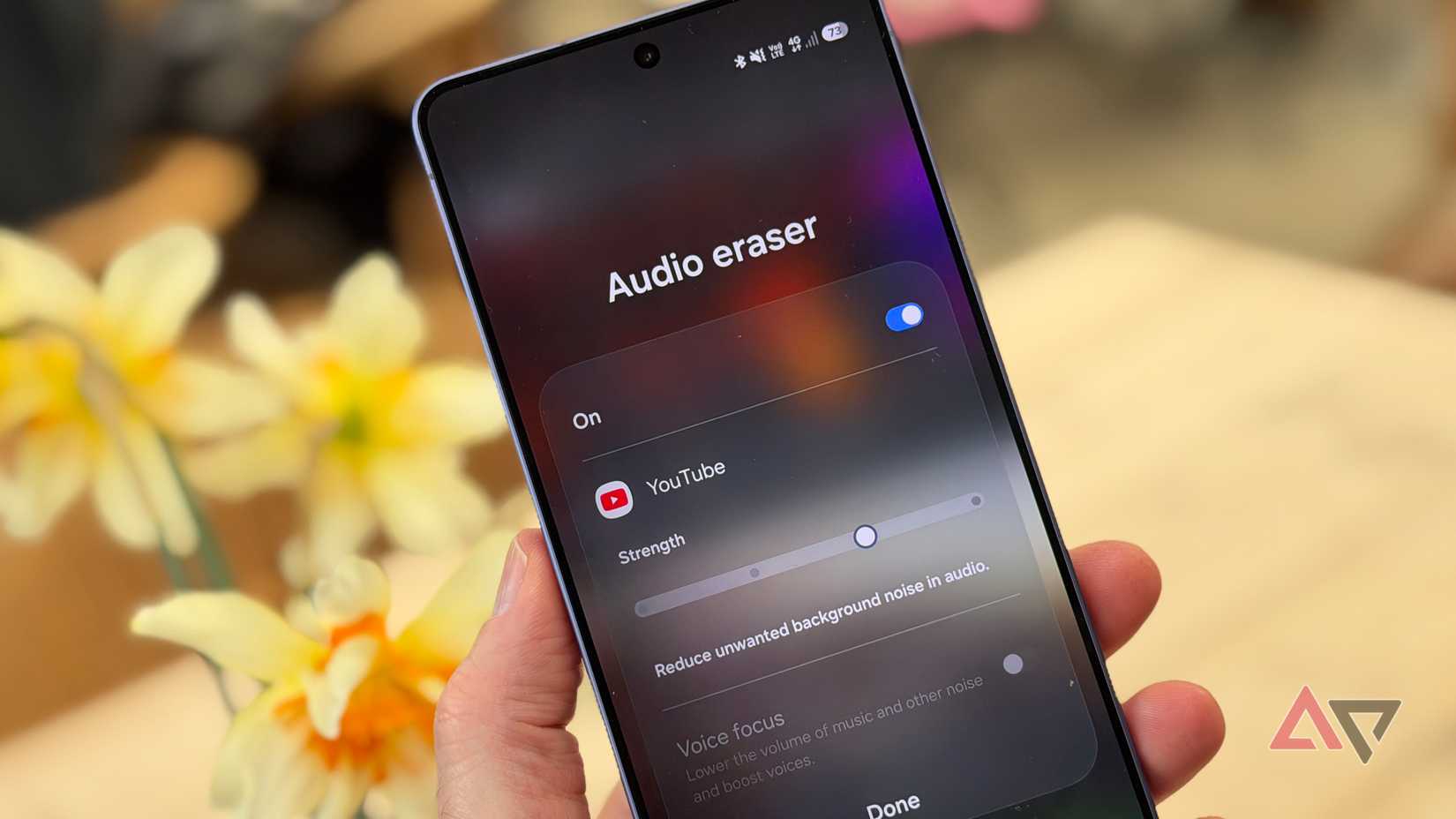
Audio Eraser splits a clip's audio into categories such as voices, music, noise, crowd, and nature. I can lower or mute each one, then compare the result with the original before saving a copy.
The feature reached the S24 series with One UI 7, and One UI 8 extended it to Voice Recorder and Samsung Notes.
I mostly use it on voice memos recorded in loud rooms, where it removes the background noise and keeps the speech. It also works on calls recorded in the Phone app, which helps when I review a call for notes.
With the Galaxy S26, Samsung brought Audio Eraser into streaming apps like YouTube, Netflix, and Instagram.
A Quick Panel toggle reduces background noise during playback, with a strength slider and a Voice Focus switch.
That moves Audio Eraser from an editing tool to something people can use while they watch.
A full desktop that runs from my phone
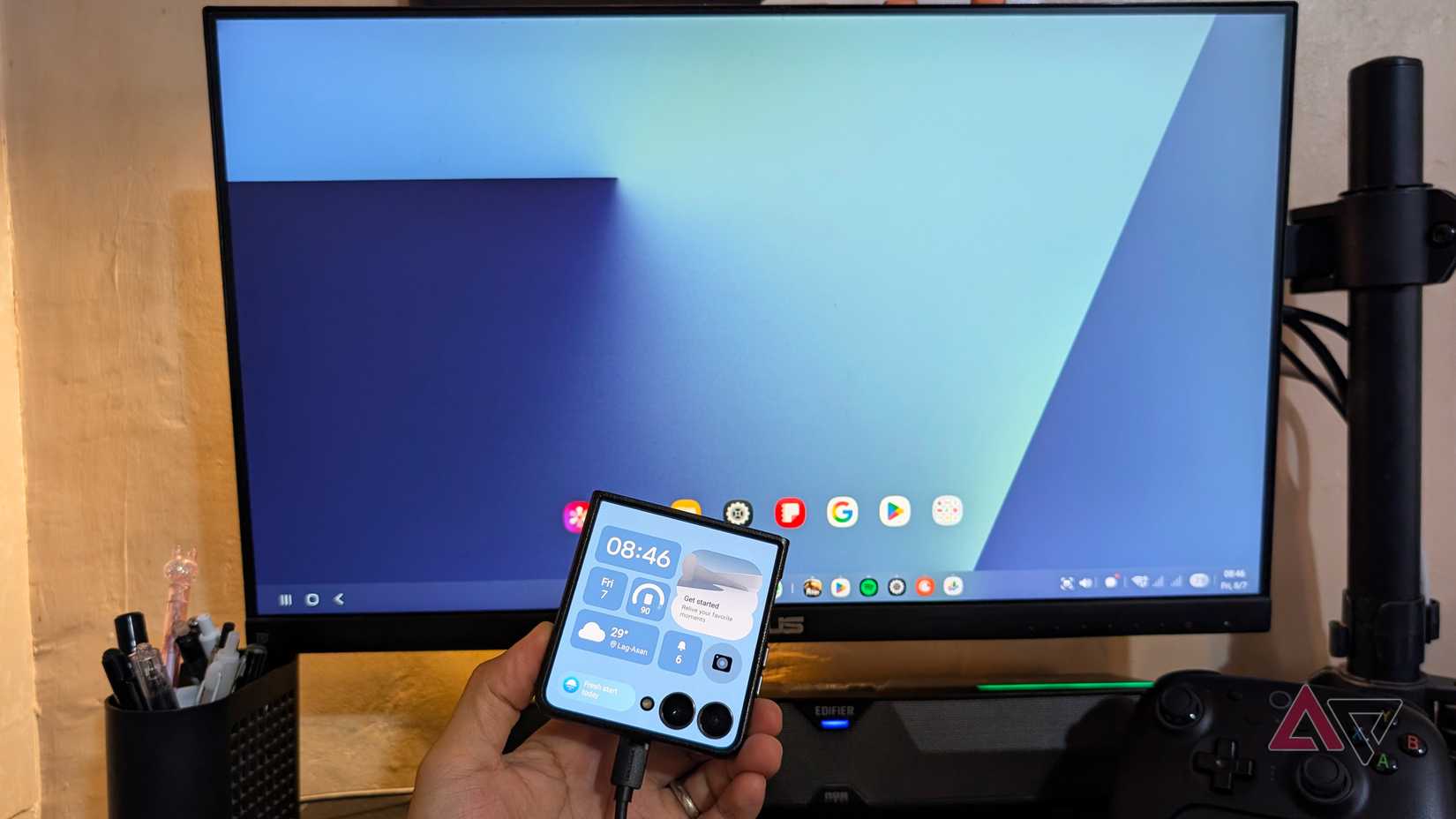
DeX turns the phone into a desktop when I plug it into a monitor. All it takes is a USB-C to HDMI adapter and a Bluetooth keyboard and mouse, and I get a taskbar with apps opening in resizable windows.
Samsung rebuilt DeX in One UI 8 on the desktop windowing system it developed with Google for Android 16. Years of DeX work now run inside Android, and this makes me like the platform even more.
One UI 8.5 made the biggest difference for me. I can now run up to four desktops, and DeX remembers each window's size and position between sessions.
It also added a new lock button that hides the workspace behind my passcode when I step away from the desk.
I use DeX so often now that the five-window limit per desktop is the only thing stopping it from replacing my laptop.
Why these features keep me on Android
All five of these features give me more say over how my phone looks, behaves, and works with other hardware.
This level of control over my phone is what made me choose Android, and Samsung keeps adding more of it. I still have tools to set up, including Samsung's Edge panel shortcuts, and each One UI update adds more to try.
But for now, I am glad at least one phone maker treats its customers as capable users who know how to handle their phones.