For as long as I've used Google Calendar, it's been the backbone of how I plan my day and week. It's the app I open when I start my day and the last app I use before going to bed to time-block my next day.
It helps me block everything, from work hours to errands. I use it to track habits and manage all my various deadlines.
The way I use the app has changed multiple times over the years, and so has the app; most of those changes have genuinely .
These quiet upgrades don't necessarily make headlines, but active users notice them, and they've all helped me manage my schedule more easily.
I'd go so far as to say they've reshaped how I use Google Calendar. Of all the changes I've made, these four upgrades have had the biggest impact.
Using secondary time zones to plan smarter across regions
Using dual time zones removes guesswork from scheduling
I work with teams across different regions, so scheduling meetings and even quick catch-ups can mean a lot of manual conversations.
I usually checked world clocks, wrote offsets in notes, and hoped I was calculating time zones accurately. Google Calendar has a lesser-known feature that solved this for me.
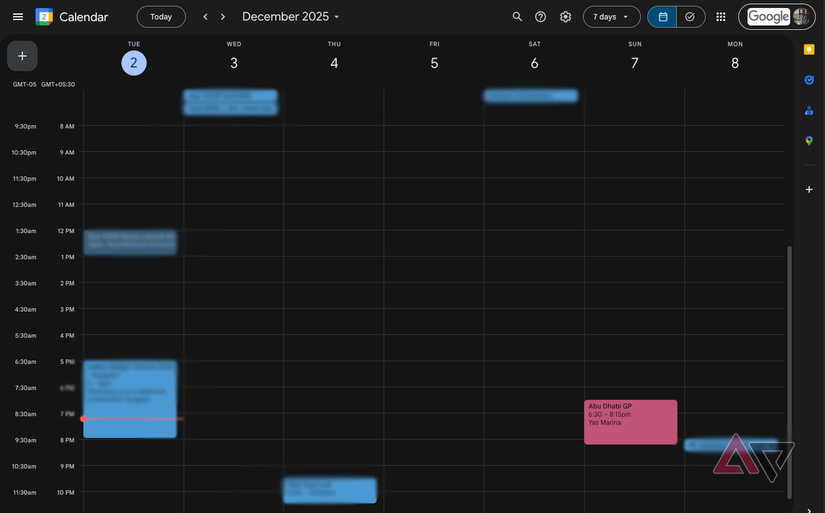
You can add a secondary time zone that appears alongside your primary one in the calendar grid. It runs down the side of the day view, so you can always see two timelines at once.
This changes how you plan things when working across time zones. Instead of guessing or converting in your head, you can start seeing it right there.
You know exactly when your working hours overlap with someone else's. This has a tangible impact, as you stop scheduling meetings or calls at unreasonable hours for the other person.
It's simple, but it shapes your daily decision-making in multiple ways by giving you a visual indication of time across regions.
This is especially powerful when your schedule involves a lot of asynchronous communication.
Turning tasks into time blocks instead of treating them as to-dos
Google Tasks isn't new, but its integration with Google Calendar has changed how I manage my workload.
Most people treat tasks as floating reminders meant to be tackled at an ambiguous time. The problem is that when they float around, work often doesn't get done.
Calendar events are the opposite. They show you how packed your day already is.
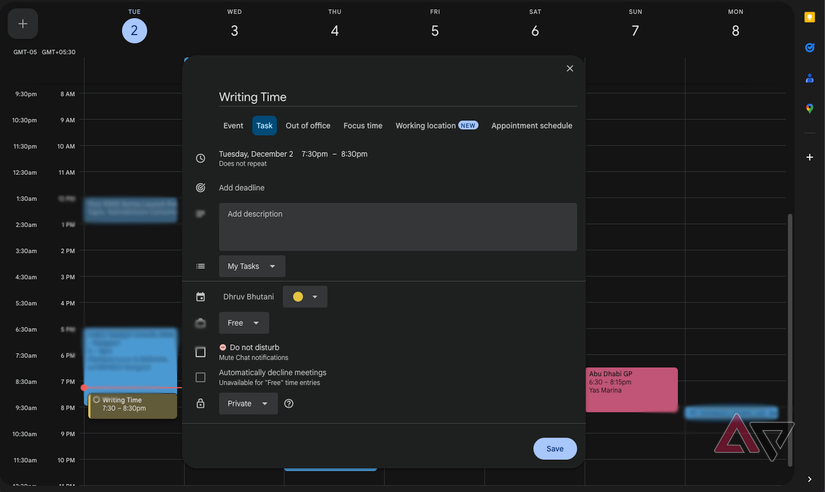
I've started using task time blocking in Google Calendar. Instead of creating a task and leaving it on a list, I assign it a focus time block.
This makes the task appear as a filled-up rectangle in the calendar view. It has a start time and an end time just like a meeting.
The result is more accurate planning. When tasks sit inside the schedule, you can immediately see what needs to be wrapped up by what time.
This also helps you adjust your work expectations. For example, I leave an additional 15 minutes per task just because delays can happen. This also helps me avoid taking on too much and missing deadlines.
The best part of the integration is that tasks stay flexible. You can drag them around as you want.
If a meeting runs too long, you can slide the task down. And if you finish something earlier, you can just pull it to an earlier slot.
It gives you a more realistic sense of the tasks at hand, the time left in your workday, and how to wrap everything up before the workday ends.
Using appointment scheduling to cut back on coordination
A simple scheduling tool that lowers cognitive load and keeps your week organized

One of Google Calendar's most overlooked features is appointment scheduling. It is not quite the same as having an open-ended window to block your calendar.
Instead, you create a time block of availability, and Google Calendar generates a booking page that others can use to pick a slot.
After they pick a time, the event instantly appears on your calendar, and the slot closes. No back-and-forth is needed, and there's no guessing.
Free personal Google accounts can only create one active appointment schedule booking page at a time. To create multiple booking pages for different meeting types, you need a paid subscription plan.
I've started using the feature to set up all my one-to-one calls, and it's changed how much time I spend coordinating.
Whether it is a quick catch-up, a consultation, or a planning session, the link does the work for me. I only have to set the rules once.
I can define the duration and set time limits, and that's all it takes. When done, I don't need to do anything else. Google Calendar does the heavy lifting.
This feature is especially useful for people who work across time zones.
The person booking a slot sees it in their local time, which avoids time-zone conversion issues. It also keeps my personal schedule aligned because it respects my existing calendar entries. If I already have something booked, the scheduling tool simply won't show that slot.
It's been a big help in reducing cognitive load, as the scheduler keeps track of pending calls and their logistics.
I only think about the meeting once it is in my calendar, and that mental separation has gone a long way toward helping me wrestle back control of my time.
Using color-coded calendars for better organization
A color system that reveals patterns in how you actually work
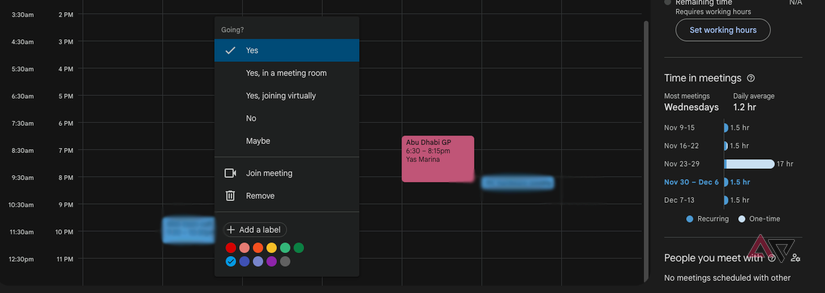
Most people use colors in Google Calendar to separate categories like work, personal, or family. And that's a fair use case. That's how I started. But now I use colors to better label the kind of work I need to do.
For example, deep work that requires a lot of concentration gets one color, while collaborative tasks get another. So do errands or travel. This has helped me track patterns in how I actually work and optimize my day better.
I feel more energetic in the latter half of the day, so I schedule tasks to align with slow mornings in the first half.
Moreover, it gives me glanceability. So if a day is looking full of deep red, hard focus time blocks, I'll avoid scheduling calls altogether.
Lesser-known Google Calendar features that improve your time management
Google Calendar is a great calendar app, no doubt. But hidden in plain sight are features that can dramatically improve how you manage your time when you get used to them.
Adding something as basic as a secondary time zone clarifies cross-regional scheduling. Turning tasks into time blocks gives you a much more realistic view of your personal workload.
Similarly, appointment scheduling cuts back on coordination messages so you can focus more on the work itself. Finally, following a color-coding schema based on the task at hand helps you spot patterns across your week and even more.
None of these features are widely advertised, but they can still change your habits. Moreover, after you start using them, it's hard to go back because they help you make better decisions when planning your day.