That little orange button can do a lot more than start your next workout.
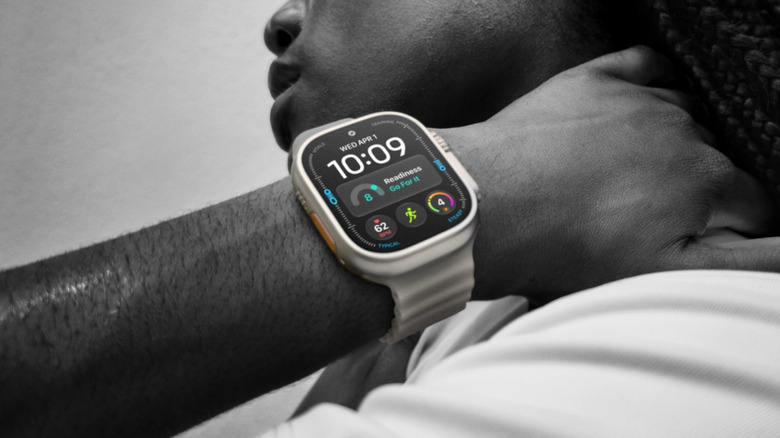
If you're serious about running, hiking, weightlifting or other high-energy activities, the Apple Watch Ultra 4 is easy to recommend. At $800, it is a commitment — but that's surprisingly reasonable compared to other fitness and adventure watches, and the benefits over a regular Apple Watch aren't trivial. It's bigger, tougher and lasts up to 50 hours on a charge, whereas a Series 12 has to be topped up every day. Combined with its satellite features and GPS accuracy, it might legitimately save your life on a wilderness trek.
An Ultra difference that Apple tends to downplay these days is the action button. It's an orange button next to the speaker grille, used as a quick shortcut for commands that other Watch owners have to tap through menus or complications to reach. It can also activate the watch's emergency siren, which helps attract attention if you're lost or injured. It's such an obvious, low-cost feature that it's almost insulting that it's not on Series devices, too.
There's a broad range of commands you can assign to the button. You can only assign one at a time, but if you know what you're doing, it can be immensely useful for anything that's a daily habit. All the more so if you take advantage of the automation upgrades in watchOS 27 and iOS 27.
The action button arsenal on your wrist
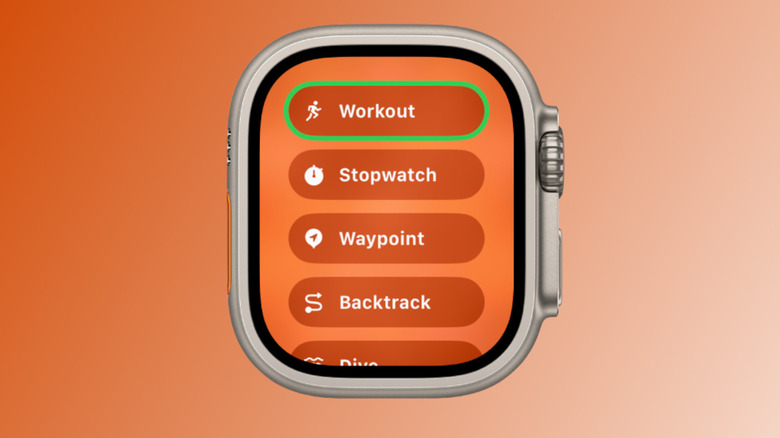
If you hold down the action button briefly, you'll see the Quick Switch menu appear. This lets you swap the button's single-tap function on the fly, which can be vital for some activities, particularly outdoor navigation. You'll see what we mean in a moment.
The most straightforward options are , , and . With these, you just hit the button once to start the function and again to stop it. As a side note, Recognize Music should be nearly instant on an Ultra 4, thanks to Apple's new Audio Intelligence capabilities, which also support automatic Shazam detection.
Slightly more complex are , and . With Stopwatch, pressing the button once starts timing, and pressing it again marks a lap. Press the action and side buttons simultaneously to pause. With Dive, a regular press begins your aquatic adventures, while pressing action and side simultaneously launches an app-specific secondary function.
Similarly, Workout will either open the Workout app or immediately launch into a particular activity. You can change this by going to . Mid-session, tapping the button performs a secondary function, such as marking a segment. To pause, press action and side together.
Special attention is due to the two navigation options, and . The first drops waypoints visible in the Compass app and the Waypoint watchface, although some waypoints are added automatically, such as your parked car and the last available cell signal. Backtrack is also linked to the Compass app, but tapping once starts recording a precise route you can retrace later. Hitting the action and side buttons simultaneously flips between the Record and Retrace modes.
The showstoppers: Accessibility and Shortcuts
For some users, assigning the button to might be unavoidable. This lets you trigger things like AssistiveTouch, VoiceOver and even control nearby devices. There may be a reason to use this if you're fully able-bodied, too, so check it out.
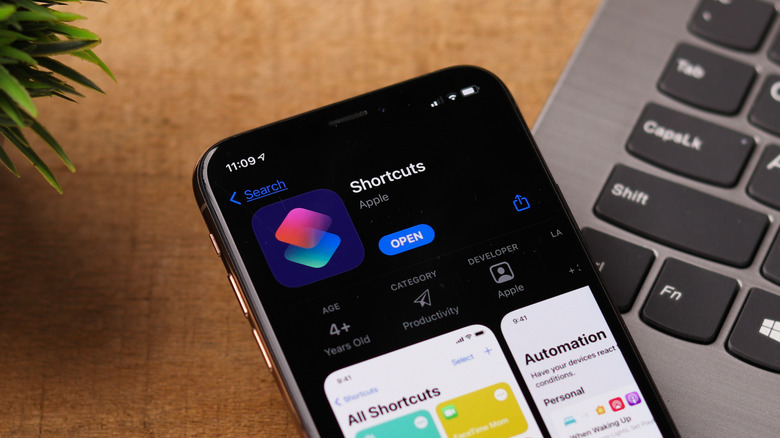
Arguably, though, the single most powerful action is . This is configured like Accessibility, but lets you trigger any automation you've built in the iPhone's Shortcuts app. Given that these automations can stretch across multiple platforms and even control smart home accessories, there's virtually unlimited potential. A single tap might, for example, turn on your lights, adjust your thermostat and even start playing local news on your HomePod.
The Shortcuts app can be unwieldy at times. Thankfully, a big change in iOS 27 on iPhones with Apple Intelligence is the ability to build shortcuts simply by describing what you want them to do. This greatly simplifies the process, although it's important to double-check the results. You don't want an "I'm driving home" routine to accidentally send an ETA to your mother-in-law instead of your partner.