I used to think my Google account was secure enough. I had two-factor authentication turned on, backup options linked, and trusted Google's default security settings to keep me covered.
But learning how hackers use parental controls made me distrust Google's default security.
By manipulating Family Link, a hacker first gains full control, then takes over your account, while security measures become ineffective.
The system can't run standard recovery procedures because it identifies the hacker as the parent and you as the child.
Knowing how quickly you can be permanently logged out of your email made me rethink my default Google security setup, so I locked down my connection with private DNS and advanced account controls.
How a hacker makes you a 'child' in your own account
The age restriction trick behind Google account takeovers
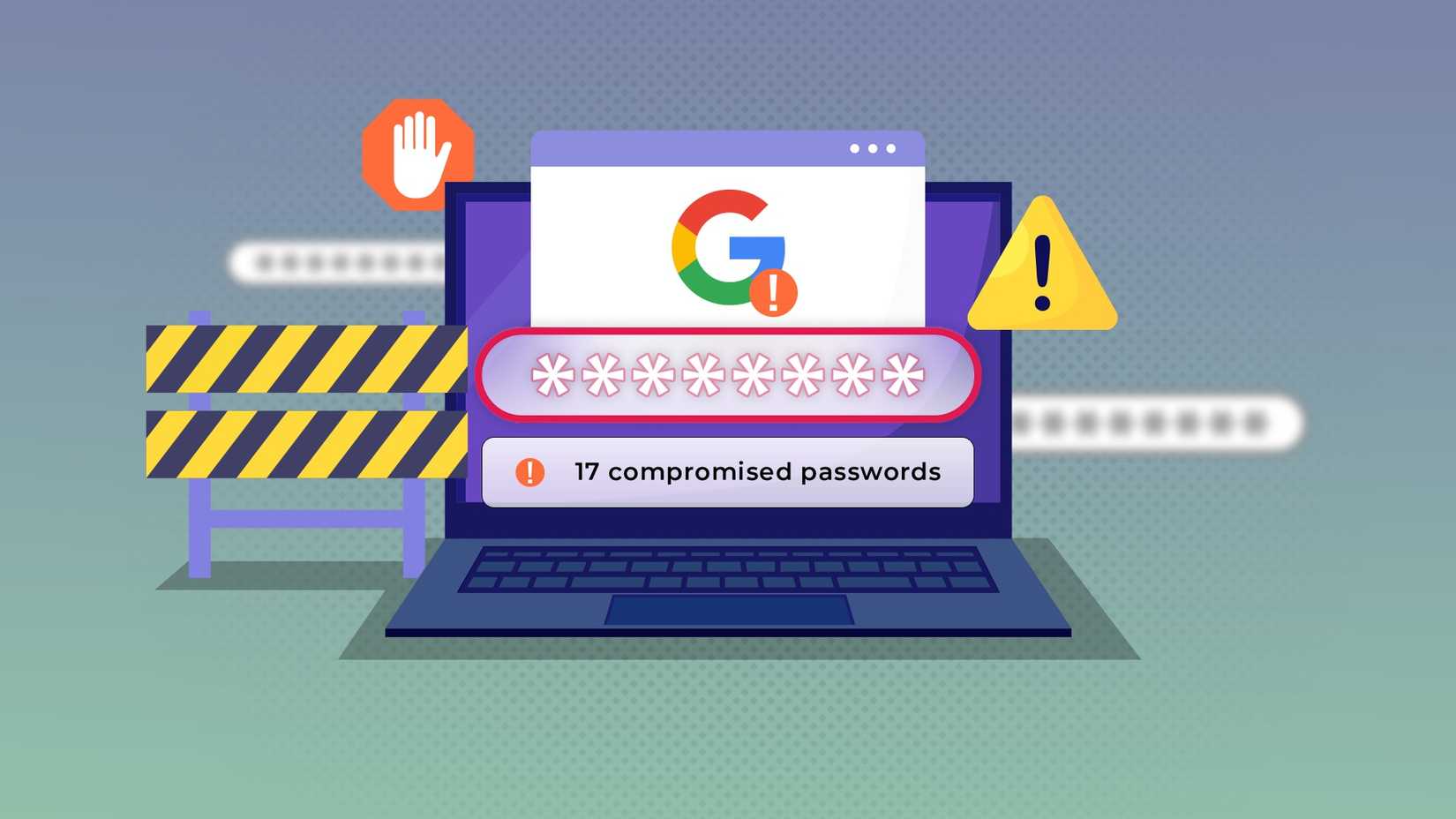
The initial phase of these attacks begins when someone gains access to your password through a data breach or when a phishing website bypasses your security system.
The attacker then changes your birth year to make you appear under 13, gains account access, and attaches it to a separate parentGoogle (Family Link) account under their direct control.
Family Link provides parents with tools to track their children when they use screens and download applications.
The system blocks you from managing your security settings because it now identifies you as a child user.
A "parent" can monitor everything a "child" does, including screen time, email, and Google Maps. They can access any information in your Google account.
The sad part is that you can't contact customer support because you can't access your email, since the parent user would block access.
Why standard 2FA and automated recovery completely fail
The extra security layers I added to protect my account
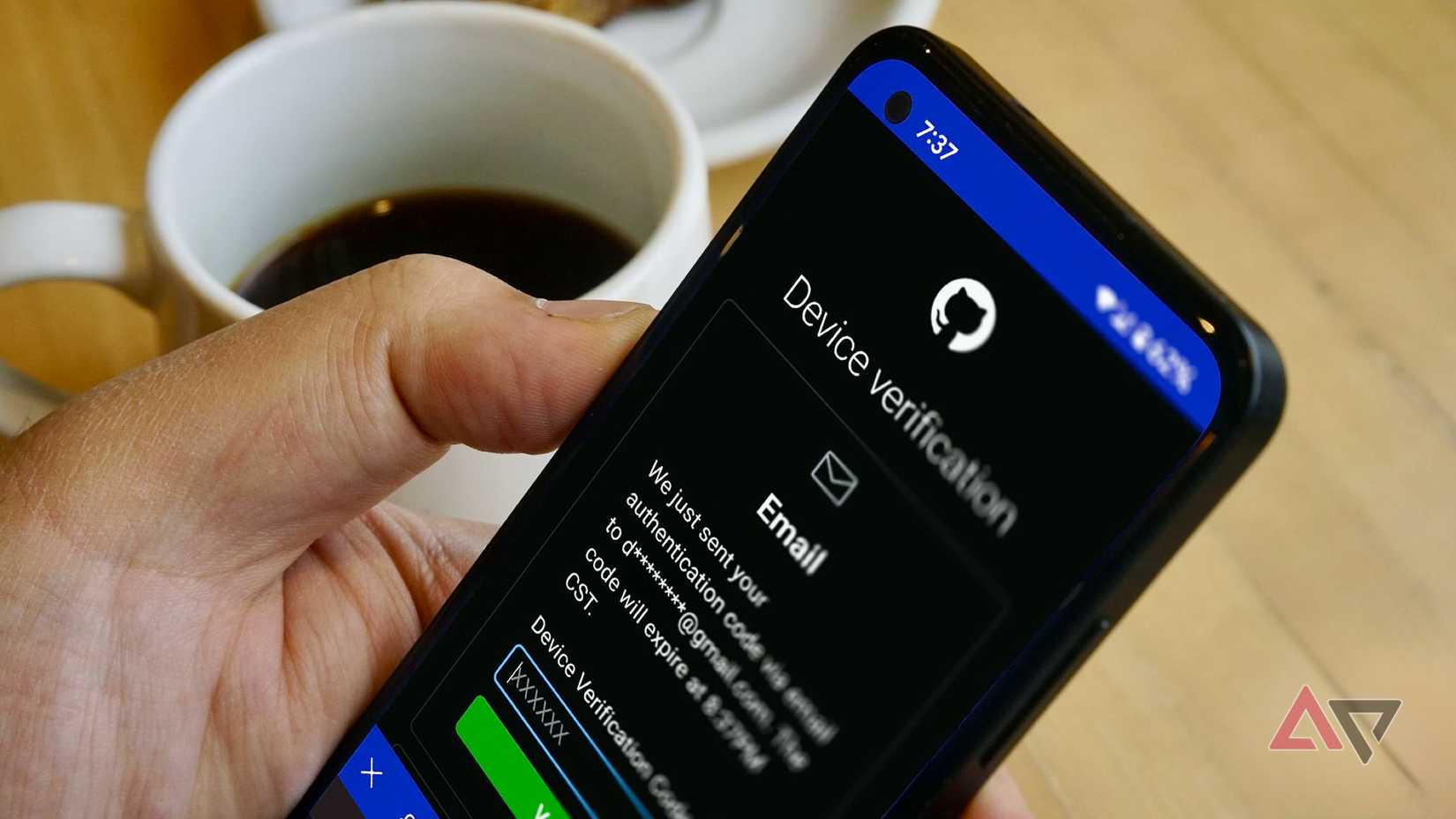
When the system treats you like a child, your backup options don't matter.
I built my security defenses potential threats.
Like most people, I assumed that as long as my phone was nearby and my recovery codes were safe, no one could access my personal account.
An attacker who forces you into a child profile status will make all your security settings disappear without any effect.
The system's permission matrix overrides all safety measures when it detects a secondary account with ultimate "parent" status, which surpasses protection from authentication apps and hardware keys.
When you try to use your standard recovery, the system detects your request as an attempt by a child to avoid parental controls. I took multiple security measures to protect my account from potential threats, which helped me prevent getting locked out.
I created three security levels, starting with Google's Advanced Protection Program, then moving to Private DNS encryption, and ending with my evaluation of account recovery options.
I enrolled in Google's Advanced Protection Program (APP)
Stricter access
The Advanced Protection Program prevents your account from joining managed family groups because it restricts all parental-control activities.
To begin, create backup authentication methods, including physical hardware keys like YubiKeys and phone-based biometric passkeys (fingerprint or face recognition).
The next steps are:
- Go to Google's Advanced Protection page.
- Sign in to the account you want to lock.
-
Complete the registration process by clicking Get started, which guides you through registering your keys and completing the verification.
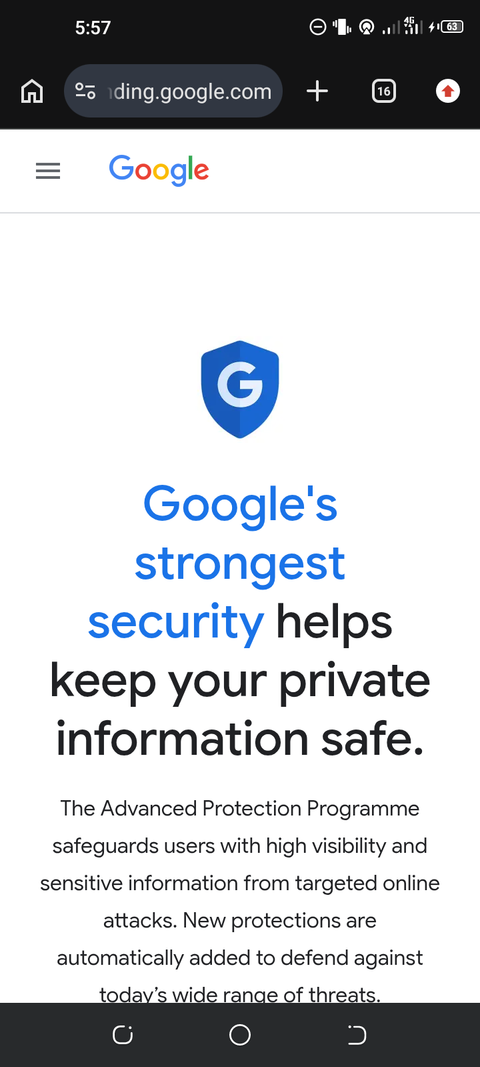
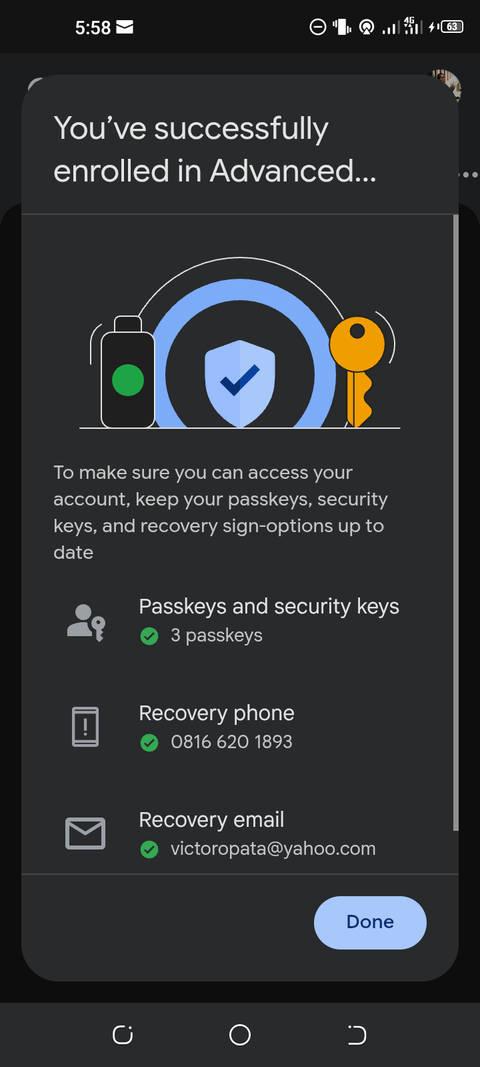
With this system, your login process is stricter when you access it from a new device, but it also prevents unauthorized users from changing your account settings.
I set a private DNS
Never trust default settings
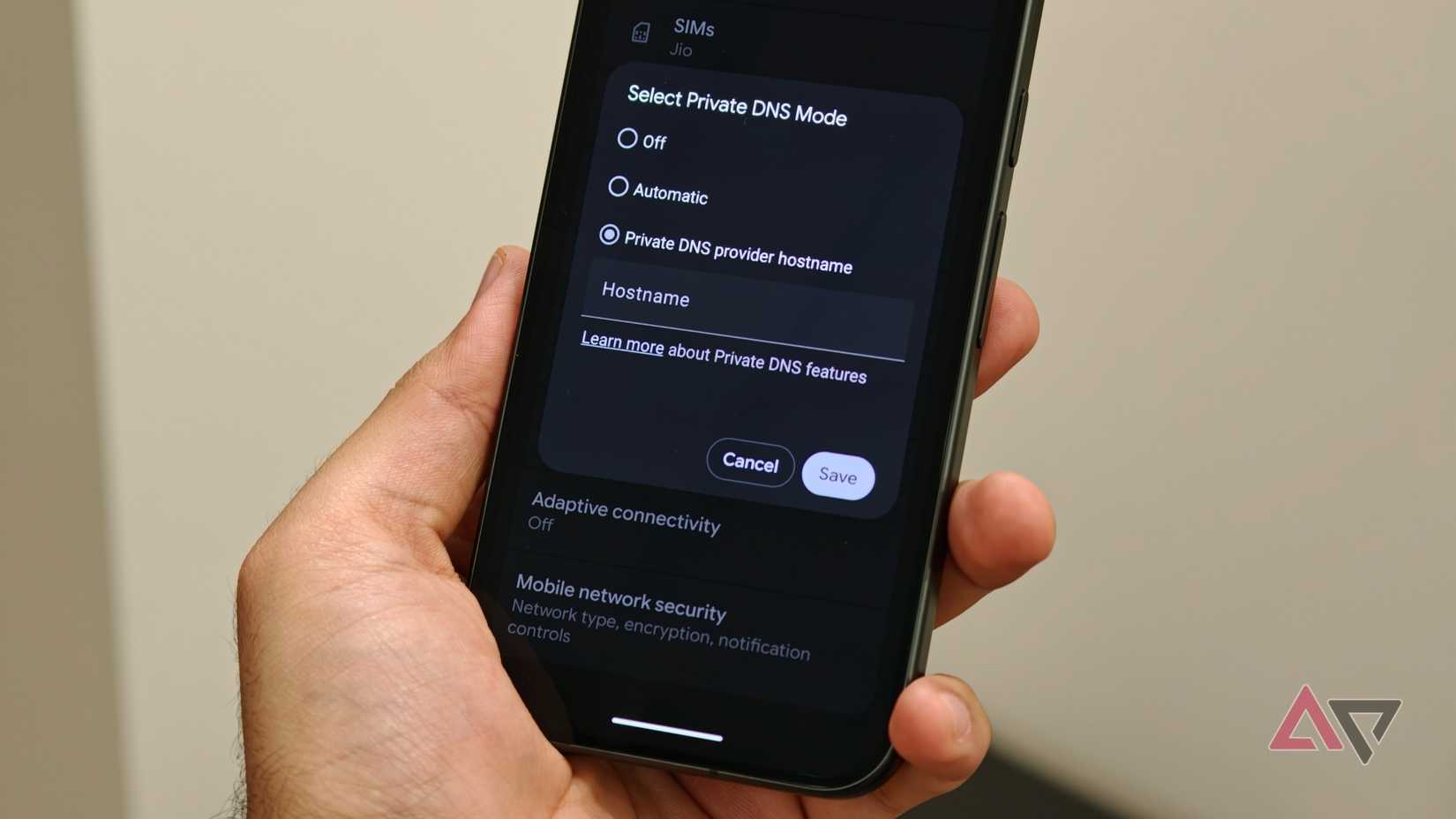
I stopped trusting default settings because I learned how easily an account can fail internally.
If hackers can use Google's feature to take your account, it is risky to leave your device connected to the default server or your home router.
Every time an app or browser reaches out to a site, your phone queries a standard domain name system in plain text. This system lets hackers monitor local network traffic, perform man-in-the-middle attacks, and maliciously redirect network data.
If you switch to a private DNS provider like Cloudflare (one.one.one.one) or a filtered profile, the traffic is locked down with TLS encryption. That way, your traffic won't be exposed to the public because it encrypts your data, so nobody else on your network can read it.
It takes less than 10 seconds to set this up.
-
Go into your Android settings.
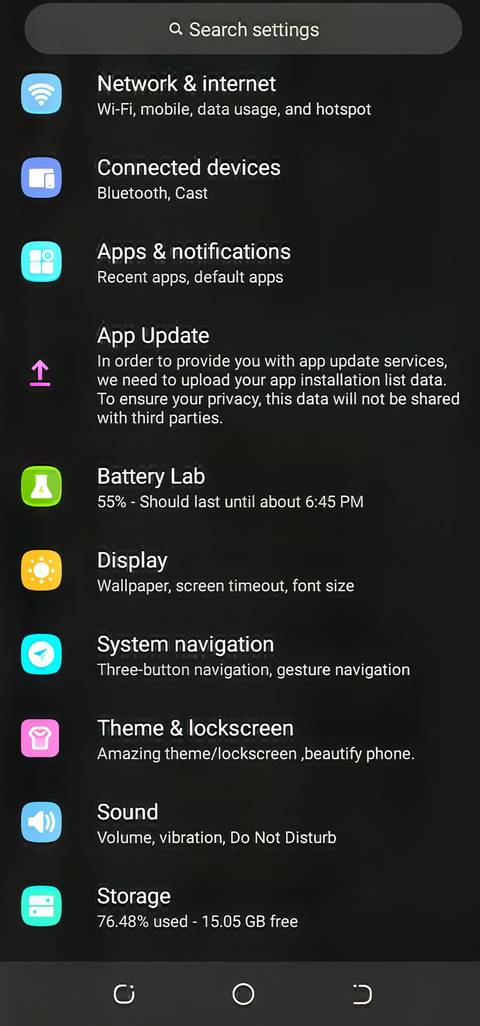
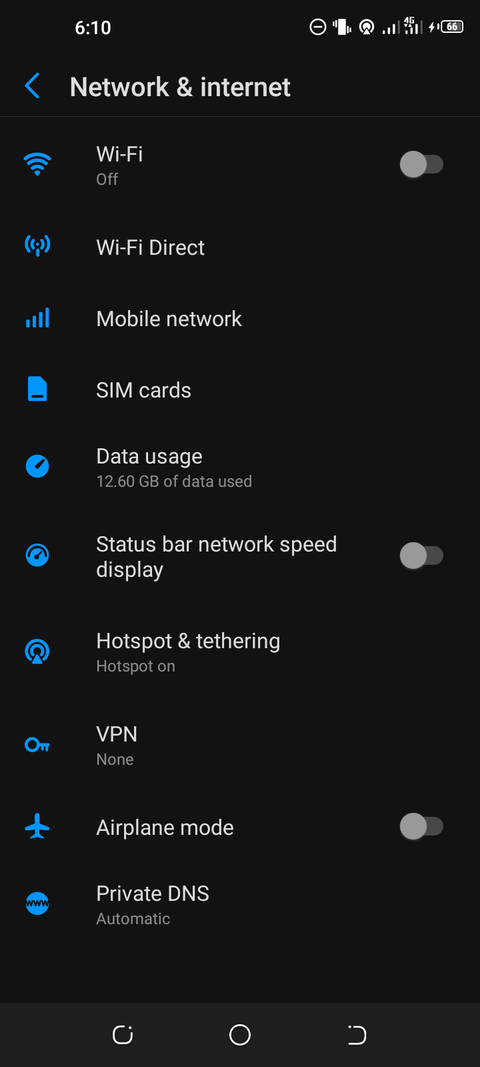
- Go to Network and Internet > > .
-
Enter a secure provider's hostname (one.one.one.one) and tap .
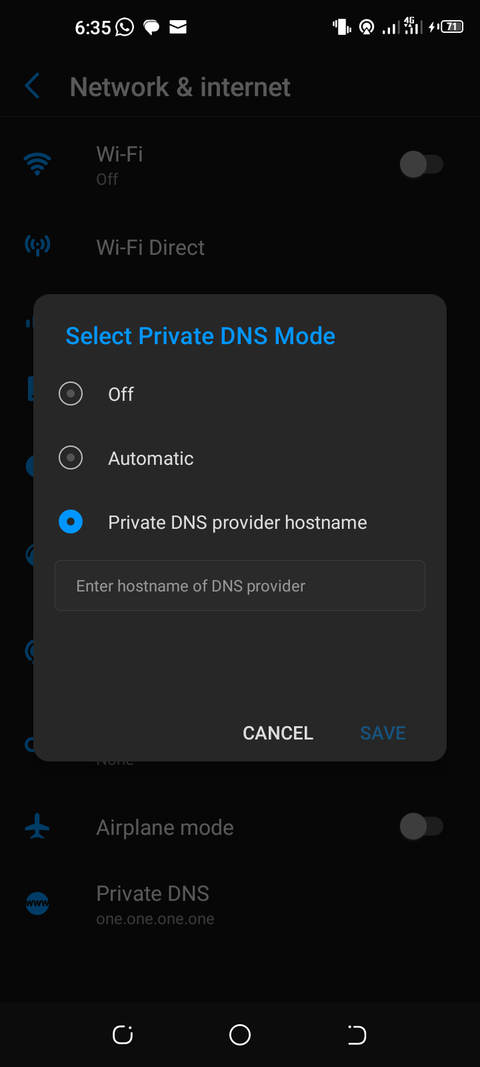
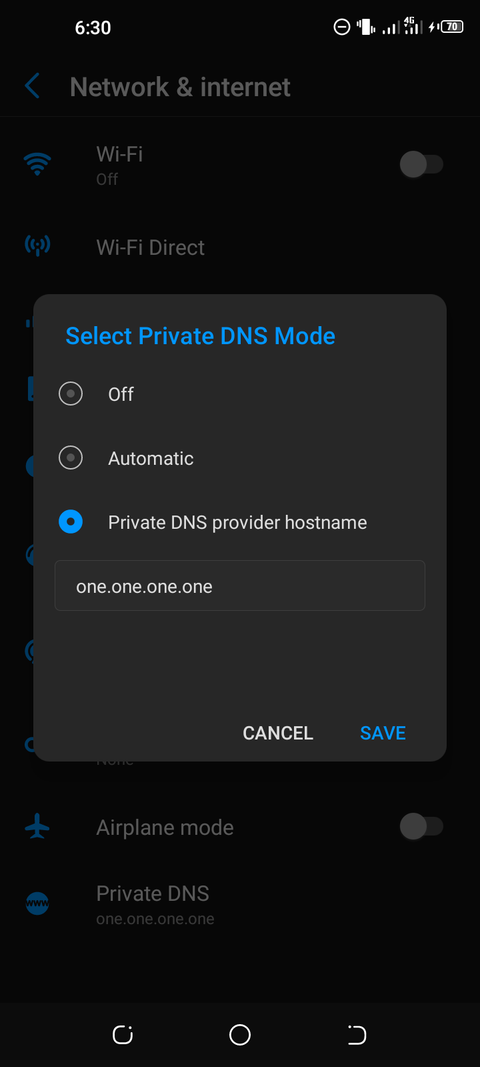
Encryption doesn't necessarily stop a breached password from being used, but it protects your network from data leaks and sketchy background routing.
I reviewed all my backup account recovery options
It doesn't hurt to be prepared
Cyberattackers know you have locked down your network and password, so they use the "forgot password" option to manipulate SMS and email recovery.
This prevents anyone from using SMS or email recovery to access your account. The attacker would need your device in hand to access your account.
They would also need your fingerprint or face recognition to access your account, making it much harder to hijack.
My Google protection is stronger now
No single security step can block every threat. Private DNS keeps traffic safer on the way to your network.
Strong authentication and account recovery options help reduce the risks. If you lose access to one email, it can affect other linked accounts, making it important to check your other email accounts.
I would rather spend a couple of minutes reviewing my settings than spend days trying to . The only thing worse than a hacker in your account is convincing Google you don't need a parent.