
For years, I treated Android Auto as a simple mirror for my phone. It was a way to see Google Maps and YouTube Music on a bigger screen.
Still, despite the convenience, I was distracted by multi-tap menus and struggled with voice commands while the A/C blasted or my little one cried.
That changed when I discovered a hidden customization buried in the settings: the ability to add one-tap shortcuts for contacts and Google Assistant actions to the app launcher.
With this trick, I eliminated the friction of driving and made the interface work for me.
Solving the voice assistant struggle
The assistant can't always hear over the road noise
My relationship with Google Assistant in the car has always been rocky.
Voice commands are the gold standard for hands-free driving, but the reality is rarely that smooth and doesn't work as expected in a quiet cabin.
I can't tell you how many times I have sat in frustrated silence and waited for that familiar bloop to signal the car is listening, only for the road noise or the hum of the A/C to turn my request into "I'm sorry, I didn't catch that."
I found myself repeating "Call Heema" three times, each time getting louder and more annoyed, which is the opposite of the calm, focused environment I want while driving.
Even when it works, voice commands are slow. You have to trigger the wake word, state the command, wait for the processing lag, and often confirm a follow-up question.
Google is replacing Google Assistant with Gemini, but that transition hasn't happened on Android Auto yet.
By adding a shortcut to my launcher, I have bypassed that clunky conversation.
Now, instead of a 10-second verbal negotiation with an AI that might not be accurate, I glance at the screen and give a single, intentional tap.
It's faster, 100% reliable no matter how loud my music is, and most importantly, it lets me get back to focusing on the road ahead instead of debating with my dashboard.
Finding the hidden menu
Put your favorite contacts front and center
For the longest time, I assumed that what I saw on my car's head unit was all I got.
I spent plenty of time poking around the settings on the dashboard screen, but that's a trap: the real power-user controls aren't in the car.
To unlock this, I had to pull over and pick up my phone.
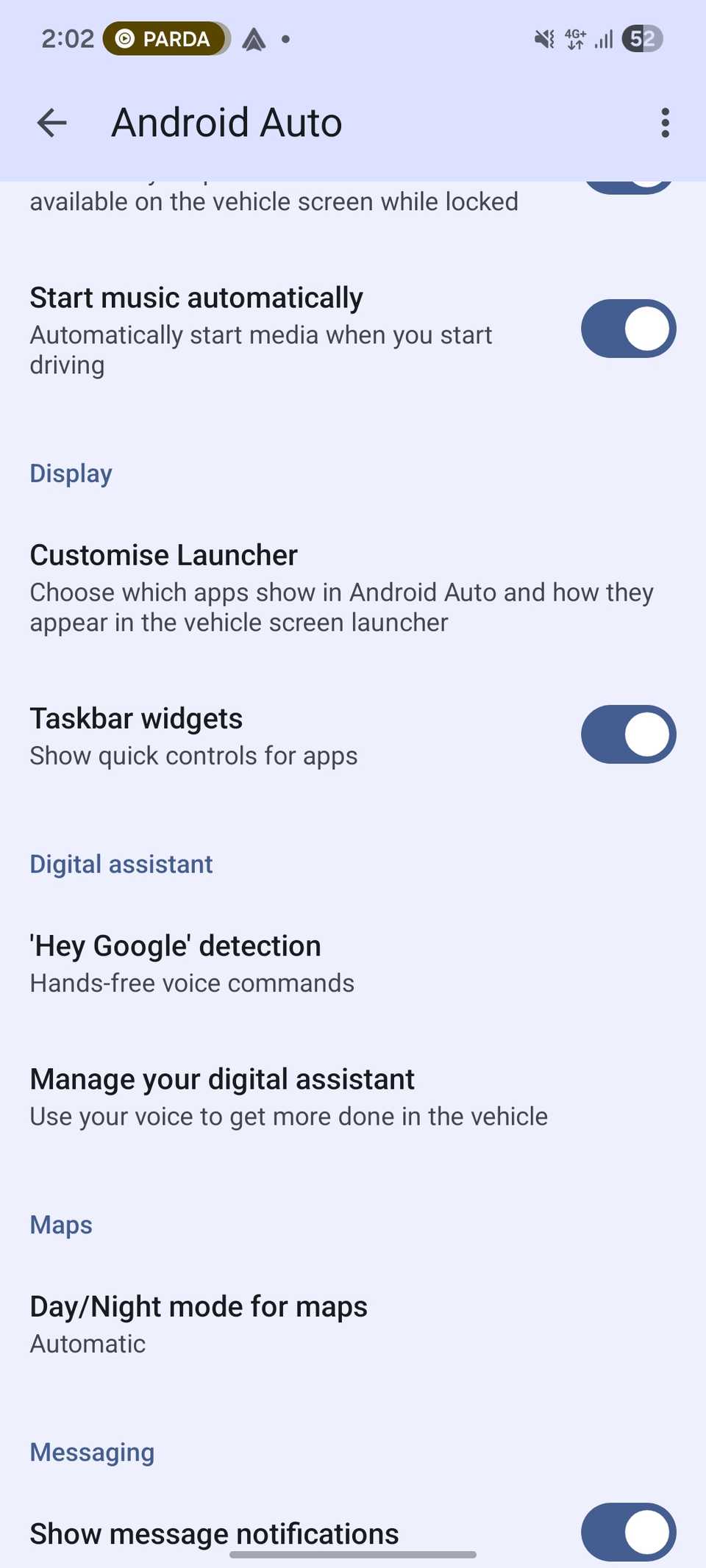
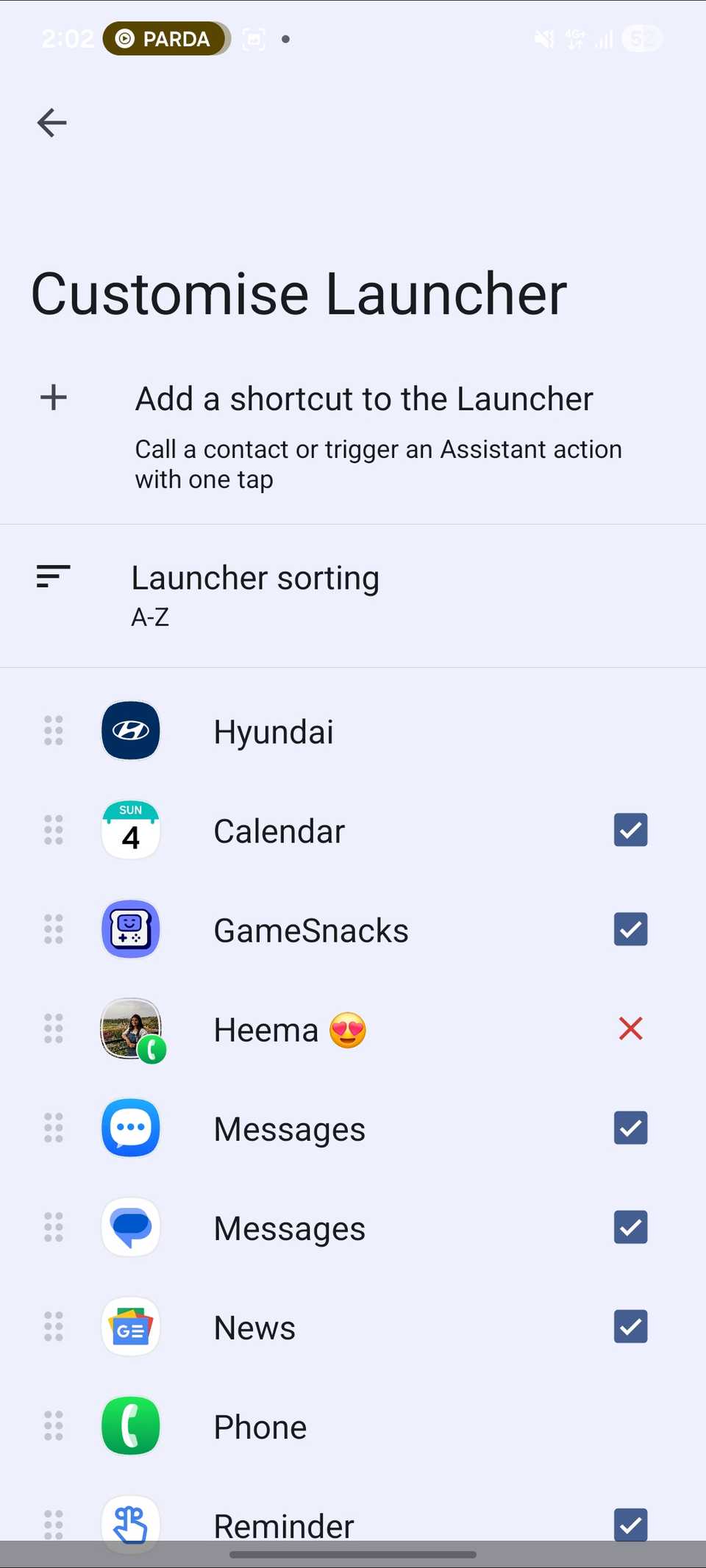
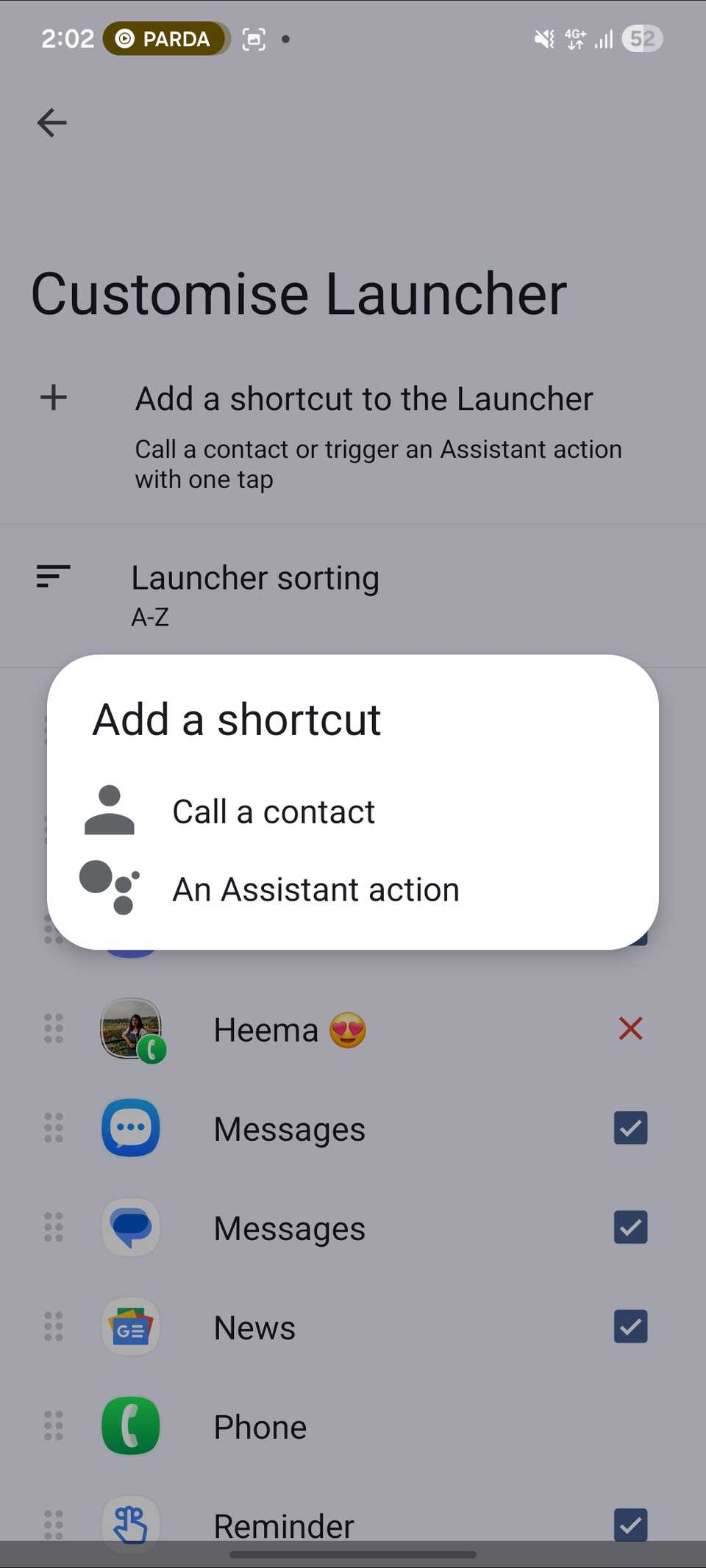
The secret is buried in the Android Auto app settings on your device. In the Android Auto menu, look for under the menu. There are two options:
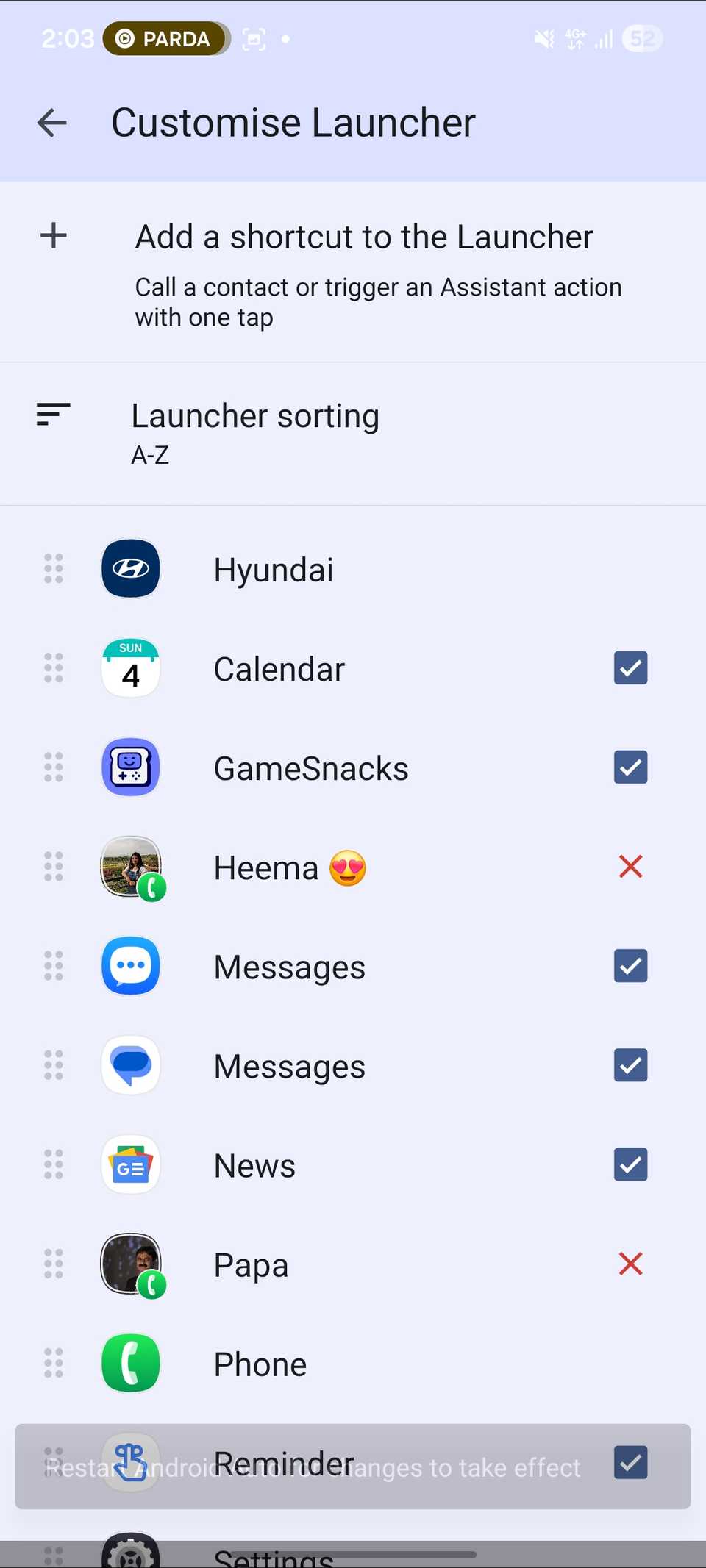
- Call contact: This lets you choose anyone from your address book. It creates an icon with their name and photo on your car's screen.
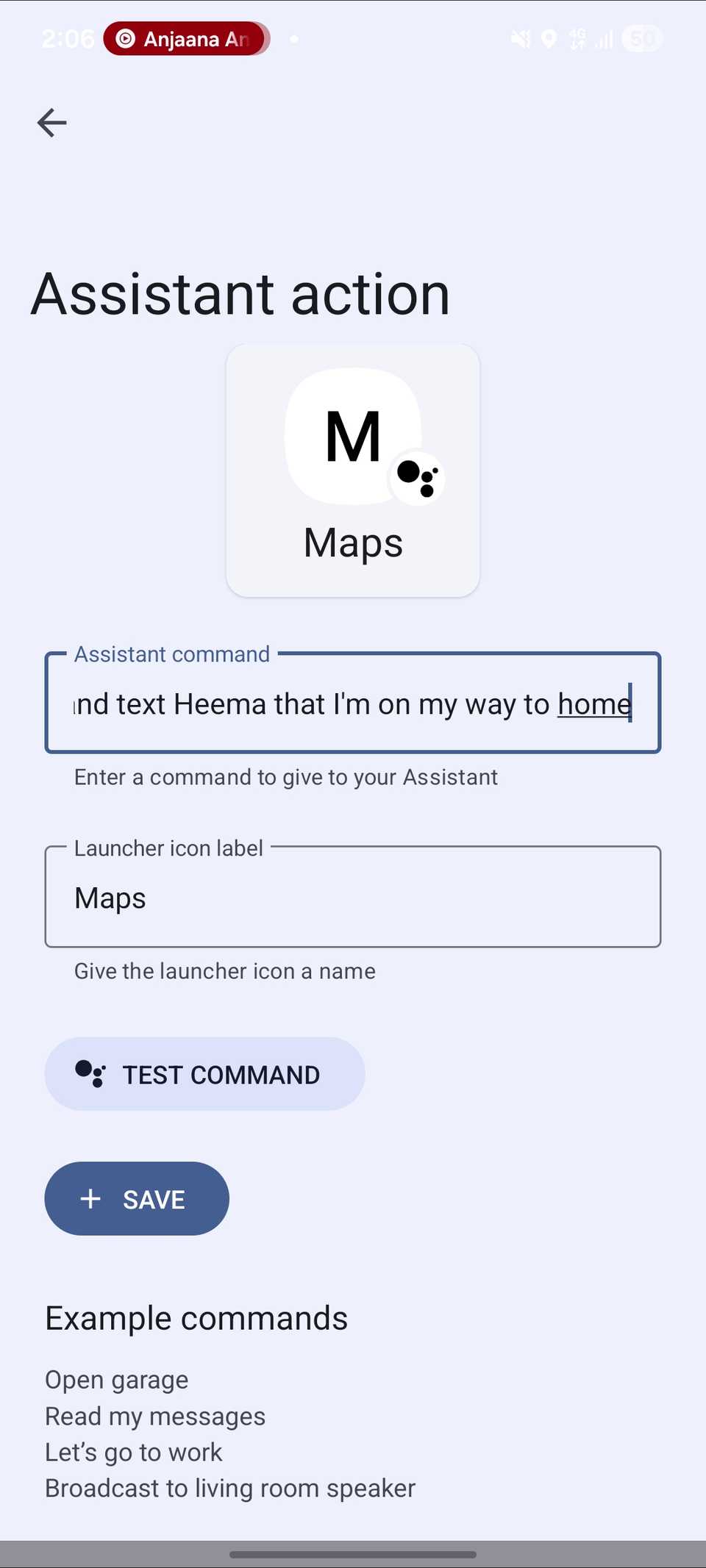
- An Assistant action: This is where the magic happens. It asks you what the Assistant command should be. Type things exactly as you would say them. Then give the icon a label — keep it short so it doesn't get cut off on the screen — and tap .
The final step is the cleanup. While in the menu, I dragged my new shortcuts to the top of the list.
Since Android Auto prioritizes the first few apps in your drawer, this ensured that the moment I plugged my phone into the car, my custom buttons were on the first page.
Creative use cases
Teach Android Auto to multitask
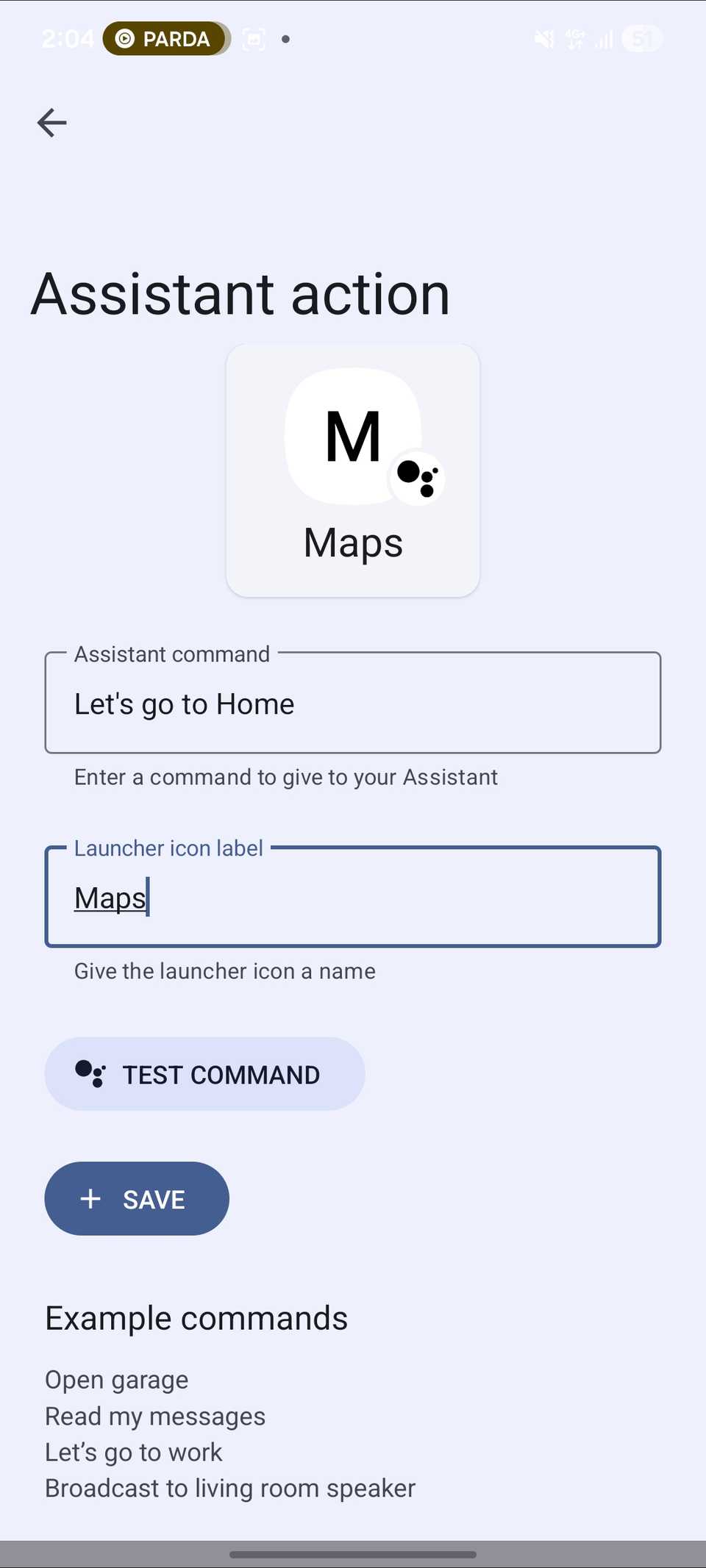
I started with my contacts. I added a shortcut for my wife and another for my business partner.
It's a dedicated speed dial that feels like it belongs in the car — one tap, and the call dials before I pull out of the parking lot.
I also added a custom assistant action.
I find it tedious to manually start my Home navigation and then dictate a text to my wife to let her know I'm leaving. It's too much interaction for a routine I do every day.
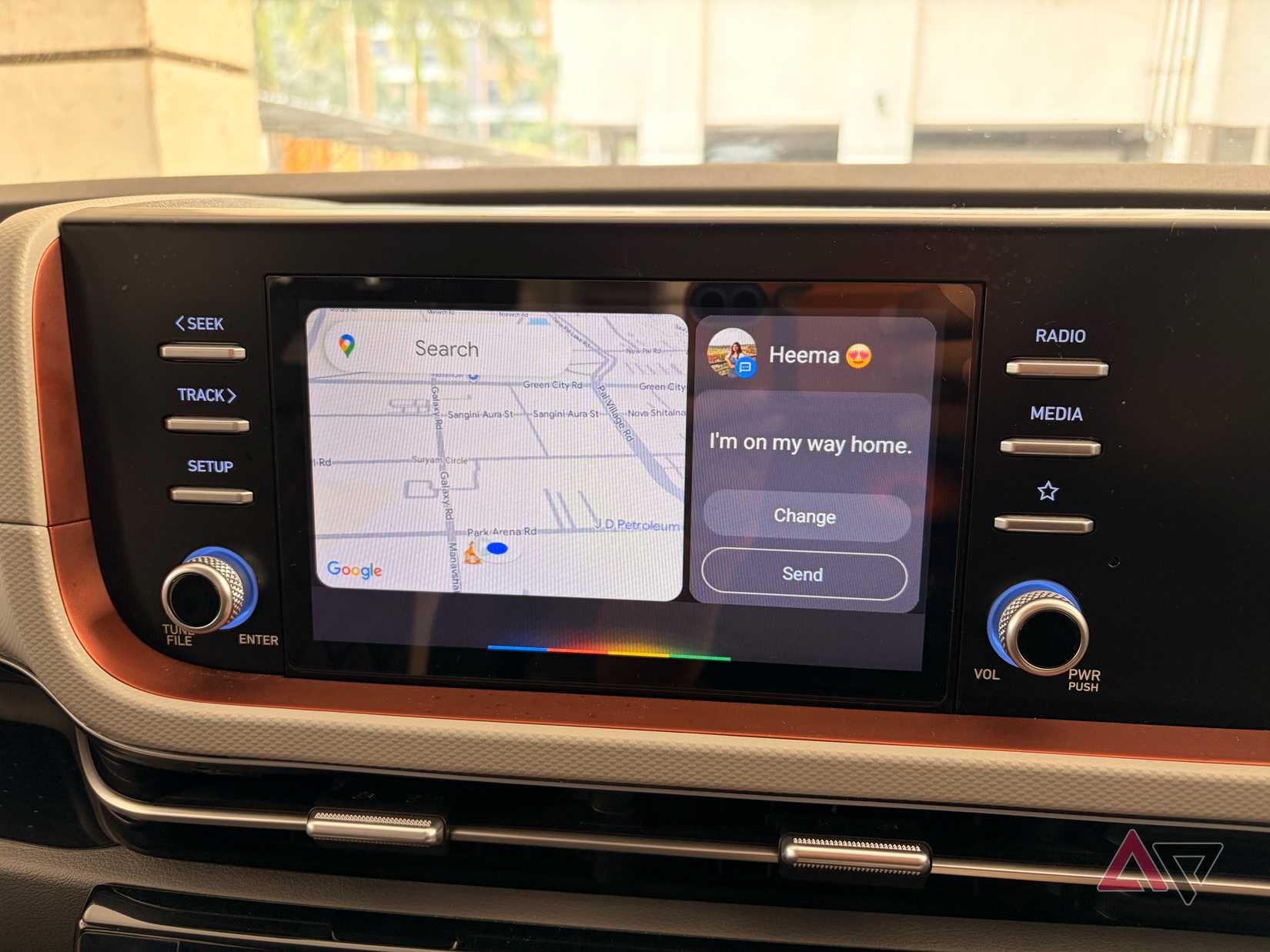
I created a shortcut, and for the Assistant command, I typed: .
Now, with a single tap on the launcher, the system opens Google Maps, starts navigation to my Home, types the suggested message, and asks me to send it to my wife.
There is something satisfying about watching your car perform a multistep routine with a single touch.
The 30-second tweak
It's easy to overlook the menu as a way to hide apps you don't use, but treating it as a space for proactive shortcuts has changed how I relate to my car.
If you haven't explored the Add a shortcut to the launcher setting yet, take a couple of minutes to do it today.
Meanwhile, check out this dedicated post to learn how you can use Android Auto to create a smooth driving experience.