Resist the urge to plug in the drive you just dropped to see if it's OK.
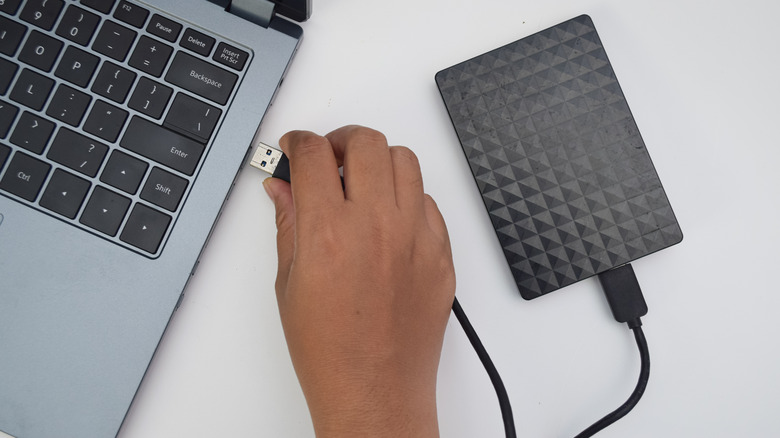
On the surface, your external hard drive might look like a sturdy device. But beneath that enclosure are a number of moving parts (sometimes including glass) working together to store your data and retrieve it when requested. In other words, your external hard drive is more fragile than you think; that's why it's important to avoid immediately plugging it back in after a fall or other damage.
Unlike speedier external SSDs, external hard drives are more susceptible to damage. It's thus even more important to handle HDDs with care and know what to do after they take a hit. To give some perspective, the read/write heads and platters in a typical external hard drive usually operate just nanometers away from each other — even a small drop can close that gap. After the impact, your data is likely still intact. But if you plug it in thinking it was no big deal, you significantly increase the risk of permanent data loss.
What happens when you plug in a damaged hard drive?
External hard drives work by spinning very fast (5,400 or 7,200 RPM), and that speed is one of the reasons why plugging in a damaged hard drive is risky: it makes damage spread quickly. For example, suppose the read/write heads were misaligned by the fall. The moment you plug the drive back in, it forces the heads back over the platters (where your data is stored). This can scratch the magnetic surface, and scratched platters equal permanent data loss. So the longer it's plugged in, the more data you're likely to lose.
Also, debris from the first scratch can get caught up in the spin and cause further damage as it collides with and contaminates other parts of the drive's platter surface. And the risks of this happening become more likely if the drive was running when it fell.
Plugging in a damaged hard drive not only complicates repair, but it also makes data recovery much harder. Technicians usually perform data recovery by replacing damaged parts with donor parts, then they copy the data off the platters bit by bit. But if the drive is plugged in after it absorbs damage, each spin-up will further scratch the platters, resulting in more lost and unrecoverable data.
What to do with a damaged external hard drive
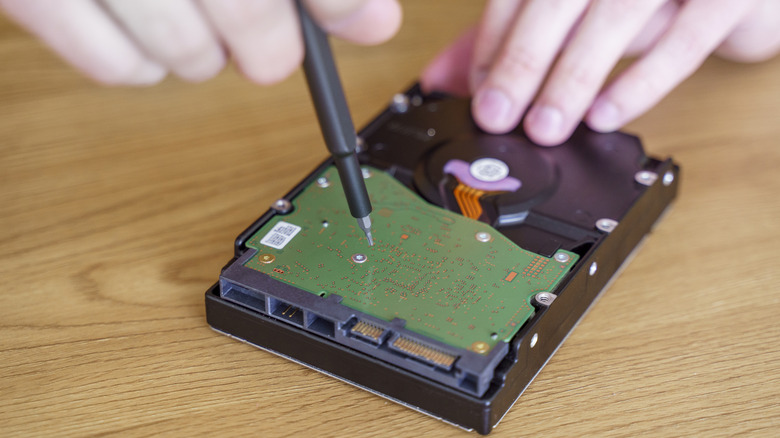
If your external hard drive takes a fall or is otherwise seriously hit, it's best to treat it as damaged until you know otherwise, especially if it was running at the time. The tricky part is safely confirming the drive's health after the fall. Most importantly, don't plug it into your computer, and unplug it immediately if it's still connected. Resist the urge to try tapping it, shaking it, opening it up or freezing it. Any of those actions can worsen the hard drive's condition if it was damaged.
The only true way to safely assess the drive's condition after a fall is through professional evaluation. If the data inside the drive matters to you and isn't backed up, get it to an established data recovery service before taking any risks. If the data is not that important or you're willing to take the risk, then do a careful single test. Plug in the drive and listen closely as it spins up. If you hear any abnormal noises like clicking, beeping or grinding, or the drive repeatedly restarts, unplug it immediately.
If it mounts and operates normally, immediately copy your most important files off the drive before running diagnostic tools. After you've saved your important files, check the hard drive's health through its SMART data (the drive's built-in health monitoring) using tools like CrystalDiskInfo. If the tool returns warnings like reallocated or pending sectors, treat the drive as unreliable and move the rest of your data to another safe location.
Keep in mind that some USB enclosures can't report SMART data and passing tests isn't a guarantee of a drive's ongoing health, although it is a good sign. Going forward, practicing habits like not moving a drive while it's running and remembering to eject external drives properly can reduce the risk of damaging your drive. And if you plan to retire one, store the old drive properly so it stays safe in the archives.