Even with a fast internet connection, the wrong Wi-Fi band can be killer.
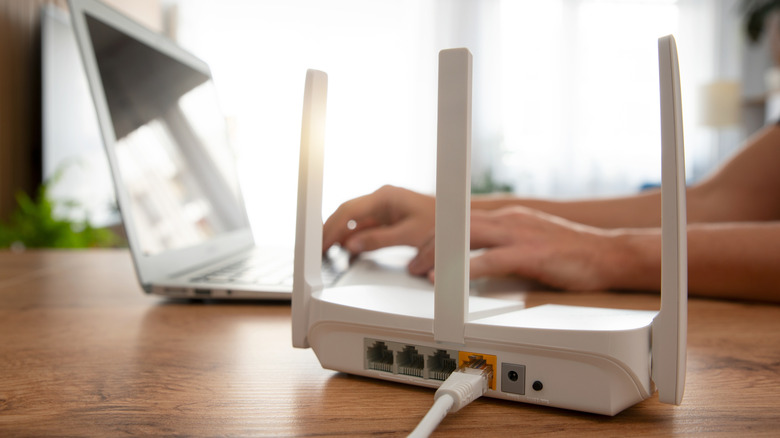
The average internet speed in the United States has been steadily rising for decades, but that doesn't mean every device in your life enjoys speedy performance. You could be paying for a connection delivering hundreds of megabits or even a gigabit per second, yet your router setup could still result in slow downloads and buffering video on certain devices. Worse still, you may see a strong Wi-Fi signal that doesn't help you diagnose the problem.
If this sounds familiar, it's smart to check which Wi-Fi band the device is using to communicate with your router. Most routers support 2.4GHz and 5GHz Wi-Fi frequency bands, while newer models also broadcast a third 6GHz band. But depending on how your network was configured, your devices may automatically switch between these frequencies. This can result in slower real-world speeds or poor connection reliability.
Luckily, you only need to change a particular setting on your router to ensure this problem doesn't affect your devices.
How one router setting might be impacting your connection speed
Each Wi-Fi frequency band has its own strengths and drawbacks, so picking the wrong one can hurt the connection quality.
The 2.4GHz band dates back to the original Wi-Fi standard released in 1997. Even today, you'll find many smart home devices that can only communicate over the 2.4GHz frequency. In addition to legacy compatibility, this band also excels at penetrating walls and other obstacles. So it's the best choice when you're looking to maximize a connection's range. However, this comes at the cost of speed and interference from other devices.
While 5GHz has been around for nearly as long, it didn't become mainstream until the 2010s. It's capable of carrying much more data than 2.4GHz, including gigabit internet speeds and potentially higher. The downside is range — higher frequencies cannot penetrate obstacles as well, meaning your devices cannot be too far away from the router.
The newer Wi-Fi 6E and 7 standards also introduced the 6GHz frequency band, which continued the trend of improving connection speed at the expense of even more limited range.
With the fundamentals out of the way, we can finally tackle what commonly causes slow Wi-Fi connections: band steering. In a nutshell, this is a feature that combines two or more Wi-Fi frequencies into one network name (SSID).
Theoretically, the feature enables routers and devices to automatically pick the most appropriate frequency depending on the conditions. But in the real world, you may find devices sticking to the 2.4GHz band instead of switching to 5GHz, even when the latter is available and strong. Disabling band steering allows you to pick which frequencies your devices use.
How to disable band steering
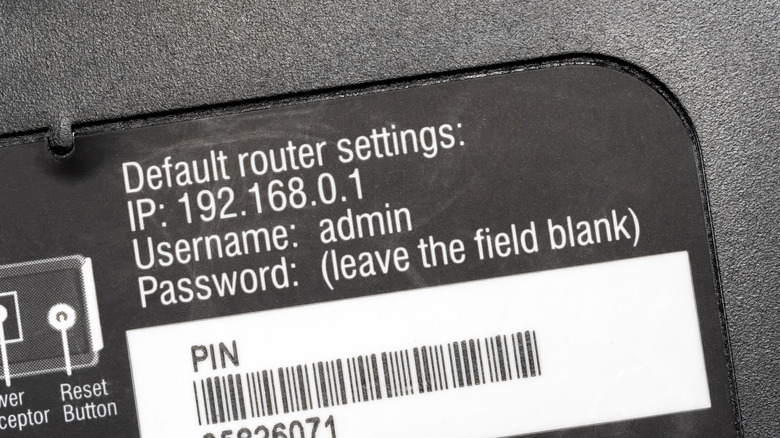
The good news is that disabling band steering is straightforward, especially if you're already familiar with accessing your router's administration panel. You'll often find the access URL and credentials printed on a label on the back or underside of your router (like the picture above) — it should be something like tplinkwifi.net or 192.168.0.1. If your router offers a companion smartphone app, you can use that instead.
Within the router's administration page, navigate to the or section and look for a setting labeled , or . Disable the feature and click . You may be asked to reboot the router to apply the changes.
On many routers, disabling band steering will automatically create a second Wi-Fi network name — often with a suffix like "_5G" to denote the 5GHz network. Routers that support 6GHz may create three networks in total. You can head into the router's Advanced wireless settings to change the SSID and password for each network.
Once you apply these changes, grab each of your devices and reconnect them to your preferred network. For example, I find that even a weak 5GHz signal from several rooms away nets me faster real-world speeds than a 2.4GHz network for my smartphone and laptop. Meanwhile, smart home devices benefit more from 2.4GHz's range since they don't need fast speeds.
Some ISP-provided routers may not allow you to disable band steering. However, you can usually bring your own Wi-Fi router or access point to sidestep this limitation.
Can I use both the 2.4 and 5GHz bands at the same time?
If you're looking to maximize connection speed, using two or more frequency bands simultaneously may seem like an obvious solution. Unfortunately, most devices cannot communicate over multiple frequency bands at once like this.
That's starting to change though, thanks to a new feature called Multi-Link Operation (MLO) introduced with Wi-Fi 7. MLO effectively combines multiple frequency bands to improve bandwidth or reduce latency, depending on the use case.
The catch is that both sides of the connection need to support the feature, which means you need both a Wi-Fi 7 router and an MLO-capable device. Even then, don't expect your internet speed to double; plenty of people have reported mixed results in the real world. Early Wi-Fi 7 routers and devices were developed before MLO was standardized, which may explain why some have experienced slower speeds while using it.
Improve speeds by checking for Wi-Fi channel congestion
Once you've properly configured your router and devices, you should also check if your network is affected by congestion. Each Wi-Fi band is divided into smaller frequency ranges called channels — think of them as separate lanes on a road. The 2.4 GHz band offers 14 distinct channels, although only 1 through 11 are available for use in North America.
If several Wi-Fi networks around you all use the same channel, you end up with devices competing for airtime. This can manifest as inconsistent performance and slow internet speeds, even if other conditions are ideal. You're most likely to notice this kind of congestion in dense urban environments like apartment buildings.
The easiest way to check for congestion is with an app like Wi-Fi Analyzer on Android. It can use your phone antennas to scan for nearby networks and show which channels they're occupying. If you see multiple overlapping signals in addition to your own, but empty channels elsewhere, consider switching to an unused one.
Apple's locked-down philosophy means that there's no direct equivalent to this app on iPhone, but you can use the company's own AirPort Utility app for a limited view. This is intended for managing Apple's legacy routers, and the company has mentioned that support is not guaranteed starting in iOS 27. However, it's the only real channel-scanning tool available for iPhone. Alternatively, you can use NetSpot on Windows and macOS.
To adjust after your findings, simply log into your router's administration page, navigate to the wireless settings section and change the channel to a less congested one. On the 2.4GHz frequency, channels 1, 6 and 11 are often recommended as they do not overlap with any others. You can also check for congestion on the 5GHz and 6GHz bands, although there is much more spectrum available on 6GHz. Not as many devices are using it yet, so congestion is far less likely to be a problem.
If you're experiencing frequent dropouts on the 5GHz band, try disabling the feature called Dynamic Frequency Selection (DFS). Ordinarily, this feature allows you to take advantage of a less congested spectrum. However, it also uses channels that are sometimes used by weather or military radar, which take priority over your network. Some cheaper devices also behave erratically on DFS channels.